GalaxyS7_Dude
Lurker
I'm running CM Launcher with Laser Tech -theme and for the life of me I can't figure how to add Apps from All Apps -view to Homescreen. In my previous theme I could simply longpress it and drag it, but now longpresssing just opens a popup-menu having "Uninstall" and "App Detail" in it. Below's the All Apps -view:

The plus-icon in the upper right corner just opens the Market / Google Play.
It seems the only way to add Apps to my Homescreen is to create a folder first, add Apps to it and then "Dissolve" the folder (longpress and drag) so Apps it contained end up to my Homescreen. But Add Apps to Folder doesn't show all the Apps I have installed in the phone, just a few (pics below)

..and when I tap the plus-icon...
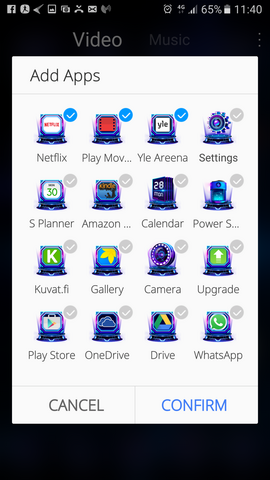
So the question remains - how do I add Apps to my homescreen?
I've tried scouring the net for an answers, but having found none....
The plus-icon in the upper right corner just opens the Market / Google Play.
It seems the only way to add Apps to my Homescreen is to create a folder first, add Apps to it and then "Dissolve" the folder (longpress and drag) so Apps it contained end up to my Homescreen. But Add Apps to Folder doesn't show all the Apps I have installed in the phone, just a few (pics below)
..and when I tap the plus-icon...
So the question remains - how do I add Apps to my homescreen?
I've tried scouring the net for an answers, but having found none....