• After 15+ years, we've made a big change: Android Forums is now Early Bird Club. Learn more here.

Root [MetroPCS/CDMA] Save android files to PC

11jjonn

Newbie
I'm "That Guy", that saves all downloaded installation files for my PC in a "InstallApp" folder - so I can access any of them from one location.

I'd like to be able to do the same with my rooted, cwm recovery, stock ROM SG3.

Root Explorer can see the files in: /data/app --- Windows Explorer (Win7) of course cannot access that deep into the phone directory.

I don't even see how to Copy these files to External sdcard folder of my choice, so I can remotely save to PC.

Looked into DirectoryBind app - can't get it to see deeper than: /sdcard (phones Internal sdcard).

Perhaps I'm just "Petting a dead dog" :confused:--- I have: MB2.tar, cwm backups, Titanium Backup (basic, getting Pro to be able to Freeze apps).
Hey, quad-redundancy never hurt anyone :D

Any thoughts/suggestions/comments ? ? ?
 
Us ROM toolbox and backup the apps you want. It creates a folder called App_Manager in your internal memory and backs up the apks in there. :)
 
Us ROM toolbox and backup the apps you want. It creates a folder called App_Manager in your internal memory and backs up the apks in there. :)

Thanks, I think that does the same as TitaniumBackup - to Internal memory -- seeking way to save to External.
 
Thanks, I think that does the same as TitaniumBackup - to Internal memory -- seeking way to save to External.


Rom toolbox can save to external sd if you specify the path where the backup will be saved in settings menu while you are in the app backup menu....
 
Rom toolbox can save to external sd if you specify the path where the backup will be saved in settings menu while you are in the app backup menu....

Sure can.
 

Attachments

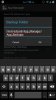
  • uploadfromtaptalk1363553398730.jpg
    uploadfromtaptalk1363553398730.jpg
    48.5 KB · Views: 80
Confused.
Installed Rom Toolbox lite, set App Manager preferences to default App_Manager/App_Backups/ & backed up ES File Manager.
Used Root Browser feature of this app, looked in /mnt/Extsdcard --- no App_Manager folder. Ditto,using Root Explorer


Found App_Manager folder in INTERNAL sdcard folder - not mnt/ExtSdCard as selected.

Tried numerous times - goes to Internal -- not External.
 
Confused.
Installed Rom Toolbox lite, set App Manager preferences to default App_Manager/App_Backups/ & backed up ES File Manager.
Used Root Browser feature of this app, looked in /mnt/sdcard --- no App_Manager folder. Ditto,using Root Explorer
the directory for external sdcard on jellybean touchwiz is not /mnt/sdcard...i think it is /storage/sdcard1/App_Manager/App_Backups...or something like that...im on aokp 4.2.2 so cant confirm that ;)...
EDIT: 11jjohn try /storage/sdcard1/App_Manager/App_Backups...your external sdcard is called sdcard1 because the internal memory is called sdcard i think...
 
the directory for external sdcard on jellybean touchwiz is not /mnt/sdcard...i think it is /storage/sdcard1/App_Manager/App_Backups...or something like that...im on aokp 4.2.2 so cant confirm that ;)...
EDIT: 11jjohn try /storage/sdcard1/App_Manager/App_Backups...your external sdcard is called sdcard1 because the internal memory is called sdcard i think...


I think I've tried all of the combinations of sdcard (internal, external, 0, 1, etc) Now, I can't find the target folder anywhere ! ! !

Perhaps another CC & Coke will help........
 
Not yet, chasing my tail with This one --another 20-30 minutes, will move on to your AndComm suggestion. Thanks


Try downloading astro file manager...then their will be two my file folders...the last my file folder will be your ext sd card...when you select your folder it will show your files in the sd card...right above that screen will be written your downloads path for ext sd card...
 
Solved: path is case-sensitive

Backup app to External 32GB SD card >>>>>

within App_Manager \ (menu button) Preferences \ (scroll to Backup Folder, and Enter) /mnt/extSdCard/App_Manager/App_Backups


Oh...I knew it was case sensitive but I thought you already knew that :)...
 
Back
Top Bottom