• After 15+ years, we've made a big change: Android Forums is now Early Bird Club. Learn more here.

Music player defaults to alphabetical order when selecting an album to play

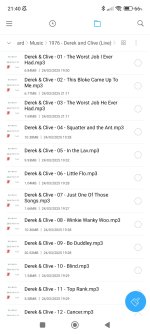
this is from phone
 

Attachments

  • Screenshot_2025-12-05-21-40-08-790_com.mi.android.globalFileexplorer.jpg
    Screenshot_2025-12-05-21-40-08-790_com.mi.android.globalFileexplorer.jpg
    158.3 KB · Views: 61
well i am now using musicolet app since they are in album order until Mi Music gets fixed or someone can check my metadata for me since I don't know what I am doing
 
Does Musicolet play your CDs in track order? If not, in your list of songs, choose a song that plays in alpha mode on your Mi player. To the right of the song title you will find three dots that when ticked will display options to manage that song. File info will bring the matadata file in view. Edit tags will allow you to change the fields in the file info.... the metadata file.
 
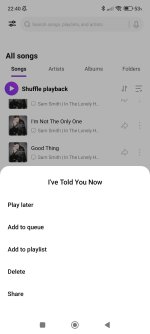
yes musicolet does play in track order this is what is on when i tap on a song using the three dots on Mi Music app it doesn't show file info or edit tags or what you are referring to
 

Attachments

  • Screenshot_2025-12-05-22-40-30-371_com.miui.player.jpg
    Screenshot_2025-12-05-22-40-30-371_com.miui.player.jpg
    76.3 KB · Views: 57
I know nothing about the Mi player. The post was to inform you how to access the metadata info if needed in the Musicolet app. It sounds like you don't need to do anything but enjoy your music with the better player and forget Mi.
 
okay should i just completely avoid the app and turn off auto updates for the app on Google Play Store which I already have
 
Lets go straight to the likely problem. Go to the play store and download Audio Tag Editor. It is a free app, easy to use, and we can see if there is a problem with your tags and edit them. Once you have the app installed, open it and go through it's introduction and then allow it to access your music files. It should then bring up your LPs. Next enter on an album that plays in alpha. It will display the Artist and amount of tracks. Below that you will see each track. The format should show Track number, title, and track play time. Here is a screen shot of Meet The Beatles
Audio Tag Editor.jpg

If there isn't a track number, you can type in the correct number for each track by ticking on a song title. It will bring up a player and will play the song if you hit play. At the top of the screen you will see the title you have opened and a pencil to click to edit the tag information. Tick the pencil. You will then see track number as an option to edit. Type in the track number in the title box and then hit save at the bottom of the screen. You will have to repeat the process for each song in the LP.

The Metadata tag is not visible when playing songs but it is read by the player. LP, Artist, Track Name, Track Number, Genre ...etc is read and used by the player. If there isn't a track number, most all players will default to playing the songs in alpha. Missing track numbers in the metadata file is my best guess why your players play some in alpha and some in descending track sequence. This simple editor should be easy enough for you to edit your files.
 
this is one of Michael Jackson's song from his number one's album is this correctly setup
Screenshot_2026-03-08-11-22-59-953_com.treefrogapps.audio.tageditor.jpg


and this is the first track from Motown Anthems CD3
Screenshot_2026-03-08-11-24-09-617_com.treefrogapps.audio.tageditor.jpg
 
At a glance, the Motown Anthems CD3 has correct track numbers in the tag information. However, you will see that your player has Shuffle Playback highlighted.
It looks to be a player problem.
 
There isn't anything wrong with the numbering. I don't know why your player is showing shuffle. Open the player and choose to play your motown cd3 and see if you can turn shuffle off.
 
Back
Top Bottom