bearsfan85
Android Enthusiast
I just compiled this to clean up stickies and do not take credit for these.
Flashing Using Odin
Thank you BH_Man
1. Open up Odin Multi Download
2. Under Select OPS, choose Behold2_partition.ops
3. Click PDA, choose the PDA File you are Trying to Flash Rather it Be BH_MAN Rom / or Stock
4. Power Off Phone
5. Make sure you have it connected via USB
6. Hold and Press Volume Down, OK, Power (the red end button)
7. Phone will say Download Mode
8. Click Start on Odin Multi Downloader.
9. Wait a couple of minutes
10. Stock Touchwiz phone working again!
1.6 Odin and Stuff
Windows XP / Vista / Windows 7
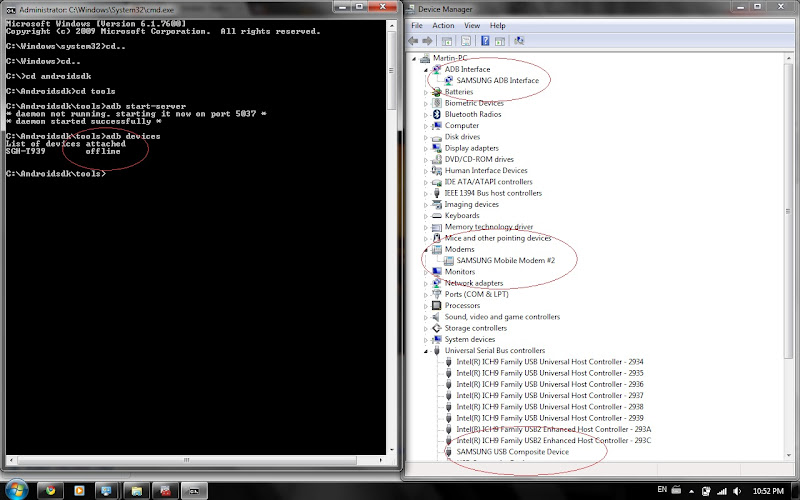
- Samsung Behold 2 USB Drivers for ODIN & ADB.
How to Thread for ADB Shell
Thanks Again BH_Man
Understanding Android file permissions
Again Thanks to BH_Man
Flashing Using Odin
Thank you BH_Man
1. Open up Odin Multi Download
2. Under Select OPS, choose Behold2_partition.ops
3. Click PDA, choose the PDA File you are Trying to Flash Rather it Be BH_MAN Rom / or Stock
4. Power Off Phone
5. Make sure you have it connected via USB
6. Hold and Press Volume Down, OK, Power (the red end button)
7. Phone will say Download Mode
8. Click Start on Odin Multi Downloader.
9. Wait a couple of minutes
10. Stock Touchwiz phone working again!
1.6 Odin and Stuff
Windows XP / Vista / Windows 7
- Samsung Behold 2 USB Drivers for ODIN & ADB.
How to Thread for ADB Shell
Thanks Again BH_Man
Due to the Over whelming Question Regarding how-to do things in Android system regarding ADB, I've Decided to make a thread regarding this Issue..
If you Have to ask a Question, be very clear so we can Keep this thread Clean.. Wiki Located here > ADB - Android Wiki
To Fix ADB in Linux, Visit this Thread > http://androidforums.com/all-things-root-behold-2/60949-adb-linux-replacement-fix-file.html
To start us Off.....
If you would Like to Pull a File / App. First we would do this....
Now we should have a Huge amount of App's in front of us, now we locate the name of the App we wish to pull Once we Find it, we do the Following.. ( In this example I'll be Pulling the alarmclock.apk )
Next, If still in Command Prompt.
running exit will drop you back into Command prompt shell, From there we Running the Following Commands in Blue...
adb pull /system/app/AlarmClock.apk C:\AlarmClock.apk
Now we should have the alram clock app in our Root Directory in C:\
Now to Push the alarm clock app after we made changes to it...
adb push C:\AlarmClock.apk /system/app/AlarmClock.apk
Now we have Pull & Push a File into the system/app Directory.
Now.... Lets say we want to remove an App from the /system/app Directory ( Be careful when doing this, Can cause phone Not to Boot... )
In this example I'll be Removing the AlarmClock.apk from adb shell..
Now, if the System uses .odex file, do the same regarding those file's as well.... The Command would look like this for .odex removal...
More Example..
Through ADB
A2SD Commands
If using any A2SD you would run these Commands as well to locate, Remove, Pull or Push.
Pull apps off phone onto computer
Push apps back to phone from the computer
Delete existing apps on SD
Please Post your How-to,
Thanks,
~BH_MAN
Understanding Android file permissions
Again Thanks to BH_Man
Overview Of Permissions via ADB SHELL
Example = drwxrwxrwx
To Check Permission at anytime in ADB just Type:
ls -l
The First character defines the Directory, Link, Binary.
Below are some examples
Example = d---------
d = Directory
l = Link
b = Binary
The next 9 characters define the file permissions. These permissions are
given in groups of 3 each.
The first 3 characters are the permissions for the owner of the file or directory.
Example = -rwx------
The next 3 are permissions for the group that the file is owned by.
Example = ----rwx---
The final 3 characters define the access permissions for everyone not part of the group.
Example = -------rwx
There are 3 possible attributes that make up file access permissions.
r - Read permission. Whether the file may be read. In the case of a
directory, this would mean the ability to list the contents of the
directory.
w - Write permission. Whether the file may be written to or modified. For
a directory, this defines whether you can make any changes to the contents
of the directory. If write permission is not set then you will not be able
to delete, rename or create a file.
x - Execute permission. Whether the file may be executed. In the case of a
directory, this attribute decides whether you have permission to enter,
run a search through that directory or execute some program from that
directory
In addition to the file permission, you can also modify the owner and
group of the file. The chown program is used here and its syntax is very
simple. You need to be the owner of a file or root to do this.
Understanding Owner Permissions:
The first command is for owner ID, the Second Command is for Group ID.
exp. root.root ( First Root is owner, Second Root is Group ).
Chmod 644 some file, Like Build.prop For testing & then Veiw the Resulted Changes!
Refer to the table below as a quick reference.
Command Line for Both would look like this
chmod 644 build.prop = -rw-r--r--
\/
Chmod Guide
0 - ---
1 - --x
2 - -w-
3 - -wx
4 - r--
5 - r-x
6 - rw-
7 - rwx
Behold 2 SH Chown Guide
\/
chown root.root build.prop
root.root = Root
root.shell = Shell
Busybox SH Chown Guide
\/
chown 0.0 build.prop
0.0 = Root
0.2000 = Shell
I'll update the chmod with more with More Complex Commands Later
Side Note:Always set owner ( chown ) before Setting Permissions ( Chmod )!
Hope this Clears up things & is Helpful to everyone
~BH_MAN