
With Rotation Authority, you can lock your phone's screen orientation in any mode desired. You can change the orientation by pulling down the status bar and clicking on the Rotation Authority notification.
Google Play Link
Key Features:
- Portrait Call: Whenever you receive or initiate a phone call, the orientation is changed to portrait mode so you can talk normally on the phone.
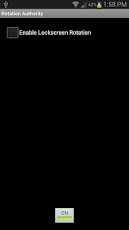
- Lock Screen Rotation: You can enable or disable lock screen rotation.
- Auto Start: Rotation Authority will automatically start its service on boot.
- Small Footprint: Rotation Authority hardly takes up storage space and RAM.
- Increased Productivity: With Rotation Authority, you save yourself time and headaches from Android's default rotation scheme.
- Minimal Permissions: Only requests the permissions it needs to function.
- Transparent Status Bar Icon
- No Ads
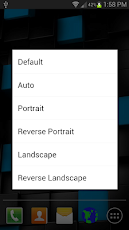
Six Orientation Modes:
1. Default - The default user setting in Android.
2. Auto - All modes of orientation.
3. Portrait
4. Reverse Portrait
5. Landscape
6. Reverse Landscape
Permissions:
- Draw Over Other Apps - Needed to force the screen orientation
- Read Phone Status And Identity: Needed to notify app when a call is in place to change the orientation
- Run At Startup - Needed to start service on device boot
Instructions:
- Enable or Disable the lock screen rotation setting. Click the "Off" button to activate the service. Click the "On" button to deactivate the service.
- To Change Orientation, pull down the status bar and click the notification.
To Do List:
1. Per App Settings
2. Deactivate service for camera apps (As of now, you should change to Landscape mode or deactivate the service to use the camera correctly)
Google Play Link
Key Features:
- Portrait Call: Whenever you receive or initiate a phone call, the orientation is changed to portrait mode so you can talk normally on the phone.
- Lock Screen Rotation: You can enable or disable lock screen rotation.
- Auto Start: Rotation Authority will automatically start its service on boot.
- Small Footprint: Rotation Authority hardly takes up storage space and RAM.
- Increased Productivity: With Rotation Authority, you save yourself time and headaches from Android's default rotation scheme.
- Minimal Permissions: Only requests the permissions it needs to function.
- Transparent Status Bar Icon
- No Ads
Six Orientation Modes:
1. Default - The default user setting in Android.
2. Auto - All modes of orientation.
3. Portrait
4. Reverse Portrait
5. Landscape
6. Reverse Landscape
Permissions:
- Draw Over Other Apps - Needed to force the screen orientation
- Read Phone Status And Identity: Needed to notify app when a call is in place to change the orientation
- Run At Startup - Needed to start service on device boot
Instructions:
- Enable or Disable the lock screen rotation setting. Click the "Off" button to activate the service. Click the "On" button to deactivate the service.
- To Change Orientation, pull down the status bar and click the notification.
To Do List:
1. Per App Settings
2. Deactivate service for camera apps (As of now, you should change to Landscape mode or deactivate the service to use the camera correctly)