
Install the app
How to install the app on iOS
Follow along with the video below to see how to install our site as a web app on your home screen.
Note: This feature may not be available in some browsers.
-
After 15+ years, we've made a big change: Android Forums is now Early Bird Club. Learn more here.
You are using an out of date browser. It may not display this or other websites correctly.
You should upgrade or use an alternative browser.
You should upgrade or use an alternative browser.
Getting contacts from WM to Android?
- Thread starter blksith0
- Start date

tonyharlan
Newbie
Just export your contacts from Outlook and import them to your gmail account. Then you can merge duplicates and everything, and then push to your device.
I really do not see the point of all the hassle if one can set the device up to sync on the go with Google.
Yes, I forgot you can just sync your WM phone with google, then get the new android phone and it will sync to the new phone.

IAmSixNine
Well-Known Member
Or if your fortunate enough to have microsoft exchange use that to sync your contacts.

blksith0
Well-Known Member
I assume you already have a Google Account as that will be required once you switch over to Android. Here is a tutorial how to sync your stuff from WM to Google.
Did you forget to post the link?
And how would I get my WM phone to sync to Google?

Szadzik
Extreme Android User
Did you forget to post the link?
And how would I get my WM phone to sync to Google?
I must have. I went to the website and copied the link but forgot to paste it here:
Setting Up Your Windows Mobile Phone for Google Sync : Google Sync - Google Mobile Help
Szadzik
Extreme Android User
I'm having a tough time with that tutorial there, I'm not sure how to get to that first screenshot on the page. I dont see the option for that anywhere. So I'm trying to use outlook to sync with google or something, I dont know what I'm doing right now.
Did you follow the tutorial from my link? There is nothing else you need to do, just sync them from your windows mobile phone and go to your gmail account and go to contacts and they should be there, no Outlook needed.
brownhornet
Android Enthusiast
When I switched I just sync'd the tp2 with google..
Szadzik
Extreme Android User
It's ActivesyncIts that tutorial that Im having trouble with, I dont know how to get to this first screen.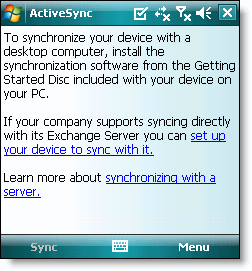
Szadzik
Extreme Android User
And it says that on the top. Go to Start>Applications to open itIt's Activesync


Szadzik
Extreme Android User
So, its been about a day. I'm just going to go ahead and bump this up.
1. You were connected to your PC when you were doing this, wrong, disconnect and go to the app again.
2. When you open ActiveSync and click Menu>Add Server source. If the option is not there, only the option to configure server, press Options instead, highlight the server you have there and press Delete at the bottom.
3. Enter your email address, uncheck the tickbox saying 'Attempt to detect Exchange Server...' Press Next.
4. Follow the tutorialstarting from here:
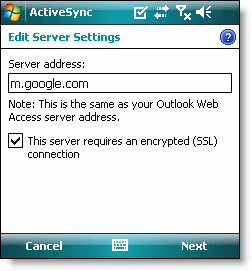
Make sure that at the step where you have to enter your full email address you try xxx@googlemail.com and if that does not work try xxx@gmail.com.
I installed a Windows Mobile emulator from MS and all these steps are correct.
The only thing that might be wrong is the version fo Windows Mobile you are using.
Are you using WM Professional (touchscreen device) or WM Standard (non-touchscreen device)?

Knewz
Android Expert
Try this if u are still having trouble.
1.open activesync on the device. add server source. It may ask for you email address, fill in. make sure "Attempt to detect" is checked. hit next.
2.Username will be your user name@gmail.com. this should grey out the domain box. enter your pass word. makes sure "save password' is checked. hit next.
3. After that it will process, then bring you to the "Server Address" screen. Input m.google.com.. make sure SSL box is checked. hit next
4. Check all boxes of things u want to sync.(of course contacts)(checking calender may give u an error when syncing) hit finish.
It should bring you back to the Activesync main page and be Synchronizing.
1.open activesync on the device. add server source. It may ask for you email address, fill in. make sure "Attempt to detect" is checked. hit next.
2.Username will be your user name@gmail.com. this should grey out the domain box. enter your pass word. makes sure "save password' is checked. hit next.
3. After that it will process, then bring you to the "Server Address" screen. Input m.google.com.. make sure SSL box is checked. hit next
4. Check all boxes of things u want to sync.(of course contacts)(checking calender may give u an error when syncing) hit finish.
It should bring you back to the Activesync main page and be Synchronizing.