Atma
Extreme Android User
If you have questions or problems with this guide, please start a new thread.
This is for the T-Mobile Galaxy S2 SGH-T989 phone ONLY. Telus SGH-T989D owners can also use this guide, just use the buttons indicated to get into Odin download mode, or see Blue1k's guide.
This will, technically, void your warranty. Proceed at your own risk.
That said, this is pretty simple, but read through it carefully before you begin.
Make sure on your phone USB Debugging is checked in Settings > Developer Options
Make sure your phone is charged. After you plug in the USB cable in step 2, put your phone down and don't touch it. Losing power or a loose USB cable during installation could cause a big headache.
If you are on the new official Jellybean 4.1.2 update, see the last post in this thread before going further.
Download and install Kies. You don't need to use Kies for rooting but it comes with the latest drivers. You may also need it for future updates from T-Mobile. After its installed, plug in your phone to the computer and let Kies find it to make sure the drivers are installed. After that, close out Kies. You won't need it anymore.
Make a folder on your PC to put these files.
Odin 1.85 - Make a sub folder and extract Odin in it.
Pick a recovery - ClockworkMod Recovery 6.0.2.8 or ClockworkMod Touch Recovery 6.0.2.8 or TWRP Touch Recovery 2.5.0.0 (Highly recommended - see more info on TWRP at the bottom of this post)
Superuser - CWM_Root_Superuser_3.1.3_Busybox - put this on the root of your sd card. Meaning not in a folder.
Note - If you are still running Gingerbread, use this recovery and this superuser. Or update to the latest stock Jellybean.
1 - Launch Odin by double clicking the Odin3 v1.85 file. Plug your USB cable to your computer but not your phone.
2 - Power off your phone. Then hold down both volume buttons and plug the USB cable into your phone. (Telus: hold volume down and power button). Press the volume up button when you see this menu.

You will then go to the download screen.
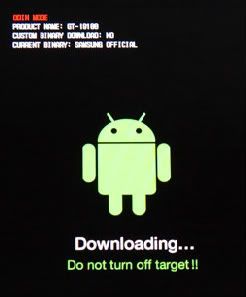
3 - Wait for the Com port in Odin to turn yellow as in the picture. You do not need to check anything that isn't already. Just be sure that Re-Partition is NOT checked. The default setting is not checked so it should be blank.
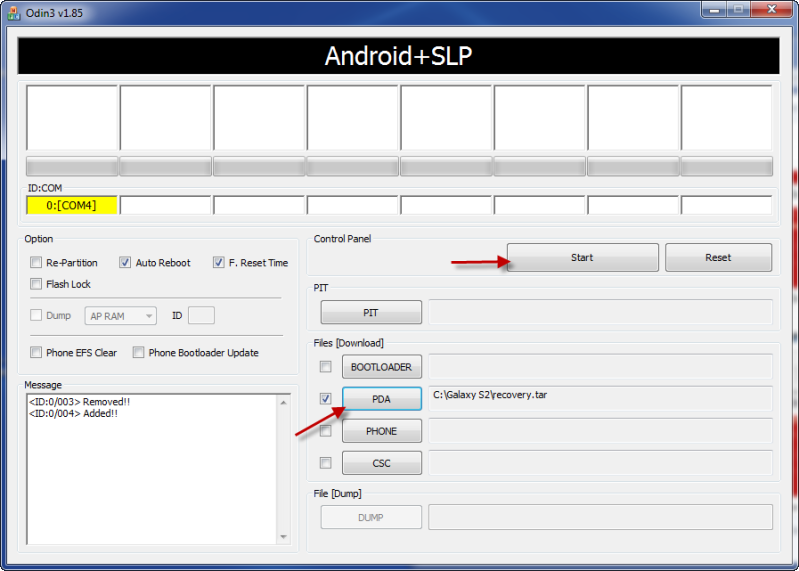
4 - Select PDA in Odin and browse to the ClockworkMod file or TWRP file you downloaded. Select it. Now press Start and Odin will flash the recovery. When it is finished you will see a green PASS in the top section.
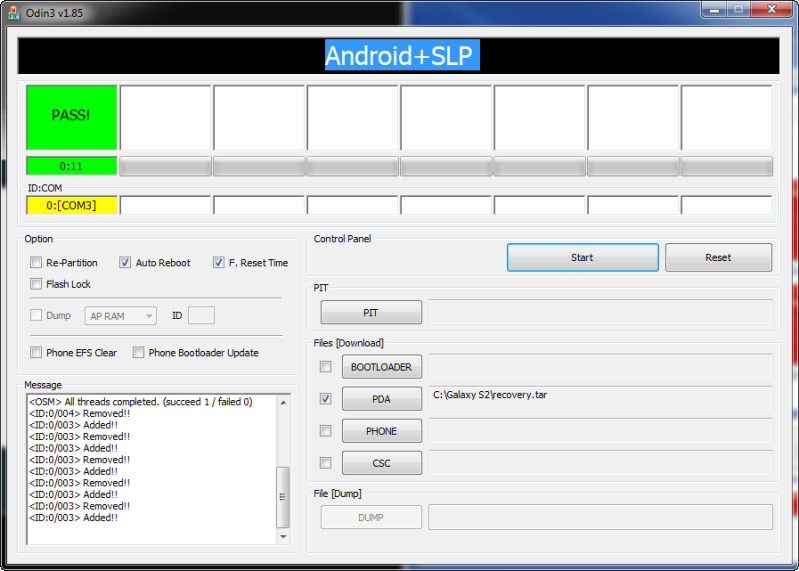
5 - Odin will reboot your phone and you can unplug it. You should now have your chosen recovery on your phone.
Now you want to go to your new recovery.
Power off your phone. Hold both volume buttons and the power button at the same time. When the phone vibrates, let go of the power button but keep holding both volume buttons. In a few seconds you should be in the recovery menu.
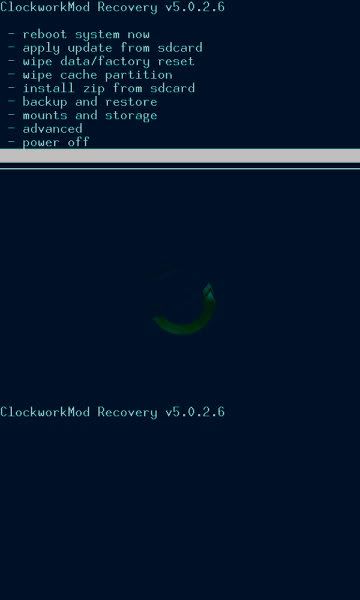
Use volume buttons to move up/down and power button to select. *if power button doesn't work, use your home button (2nd from left on bottom of phone)*. Select install zip from SD Card.
Then select choose zip from SD Card.
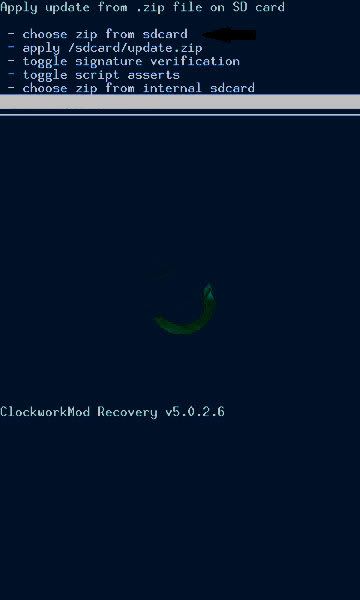
Find the Superuser.zip file you put on your sd card and select it. On the next screen select yes.
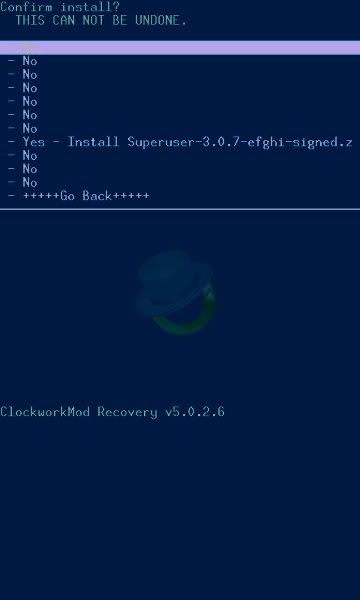
Superuser will install. You may get an error and installation aborted message. Just try again. It may take several attempts.
Reboot your phone and check to see if you have the Superuser app in your app drawer. Congratulations! You are now rooted.
Just to be sure, download an app that requires root, Like Titanium Backup, and make sure it works. If it says you don't have root, go back to recovery and flash Superuser again. It should work then.
Before you do a lot, go back to CWM recovery or TWRP. In backup and restore, select backup and it will make a nandroid backup. Don't forget your backup! Do it! Do it! Do it! If you have problems in the future, you can restore this backup to get you out of trouble. Make sure you have at least 1gb free on your sd card. That's about the size of a nandroid. Its also a good idea to move a copy of that backup to your PC in case of emergencies.
This is for the T-Mobile Galaxy S2 SGH-T989 phone ONLY. Telus SGH-T989D owners can also use this guide, just use the buttons indicated to get into Odin download mode, or see Blue1k's guide.
This will, technically, void your warranty. Proceed at your own risk.
That said, this is pretty simple, but read through it carefully before you begin.
Make sure on your phone USB Debugging is checked in Settings > Developer Options
Make sure your phone is charged. After you plug in the USB cable in step 2, put your phone down and don't touch it. Losing power or a loose USB cable during installation could cause a big headache.
If you are on the new official Jellybean 4.1.2 update, see the last post in this thread before going further.
Download and install Kies. You don't need to use Kies for rooting but it comes with the latest drivers. You may also need it for future updates from T-Mobile. After its installed, plug in your phone to the computer and let Kies find it to make sure the drivers are installed. After that, close out Kies. You won't need it anymore.
Make a folder on your PC to put these files.
Odin 1.85 - Make a sub folder and extract Odin in it.
Pick a recovery - ClockworkMod Recovery 6.0.2.8 or ClockworkMod Touch Recovery 6.0.2.8 or TWRP Touch Recovery 2.5.0.0 (Highly recommended - see more info on TWRP at the bottom of this post)
Superuser - CWM_Root_Superuser_3.1.3_Busybox - put this on the root of your sd card. Meaning not in a folder.
Note - If you are still running Gingerbread, use this recovery and this superuser. Or update to the latest stock Jellybean.
1 - Launch Odin by double clicking the Odin3 v1.85 file. Plug your USB cable to your computer but not your phone.
2 - Power off your phone. Then hold down both volume buttons and plug the USB cable into your phone. (Telus: hold volume down and power button). Press the volume up button when you see this menu.
You will then go to the download screen.
3 - Wait for the Com port in Odin to turn yellow as in the picture. You do not need to check anything that isn't already. Just be sure that Re-Partition is NOT checked. The default setting is not checked so it should be blank.
4 - Select PDA in Odin and browse to the ClockworkMod file or TWRP file you downloaded. Select it. Now press Start and Odin will flash the recovery. When it is finished you will see a green PASS in the top section.
5 - Odin will reboot your phone and you can unplug it. You should now have your chosen recovery on your phone.
Now you want to go to your new recovery.
Power off your phone. Hold both volume buttons and the power button at the same time. When the phone vibrates, let go of the power button but keep holding both volume buttons. In a few seconds you should be in the recovery menu.
Use volume buttons to move up/down and power button to select. *if power button doesn't work, use your home button (2nd from left on bottom of phone)*. Select install zip from SD Card.
Then select choose zip from SD Card.
Find the Superuser.zip file you put on your sd card and select it. On the next screen select yes.
Superuser will install. You may get an error and installation aborted message. Just try again. It may take several attempts.
Reboot your phone and check to see if you have the Superuser app in your app drawer. Congratulations! You are now rooted.
Just to be sure, download an app that requires root, Like Titanium Backup, and make sure it works. If it says you don't have root, go back to recovery and flash Superuser again. It should work then.
Before you do a lot, go back to CWM recovery or TWRP. In backup and restore, select backup and it will make a nandroid backup. Don't forget your backup! Do it! Do it! Do it! If you have problems in the future, you can restore this backup to get you out of trouble. Make sure you have at least 1gb free on your sd card. That's about the size of a nandroid. Its also a good idea to move a copy of that backup to your PC in case of emergencies.
 Want to try it? Well follow me!
 If its been a while since you rooted and you've added a lot of apps, make another separate backup. If you don't like the custom rom for whatever reason, just restore your nandroid. All your apps will be back and you won't need to restore them all with Titanium.