
Here is a guide to go with [Guide] Creating Custom Lockscreens by ccapasso
I use a program called GIMP (GNU Image Manipulation Program).
Use Scale (Image>Sale Image) to make the image fit the template. The template for the lockscreen is 320x480. The image doesn't have to fit inside the template. If you scale the image to 320x480 it will distort the image.
Overview=
1. Open GIMP
2. Drag the file lockscreen_topedge.png into GIMP
3. Drag the file you want to make into your lockscreen.
4. Change the opacity so you can position the image using the moving tool. When you are done, make sure you change the opacity back.
5. Select Layer>Transparency>Add Alpha Channel
I like to use the fuzzy select tool and the free select tool to highlight the areas I want to clear.
6. select Edit>Clear(delete)
7. Use the zoom tool to get a closer look at the image to clean up.
1. Open GIMP
2. Drag the file lockscreen_topedge.png into GIMP
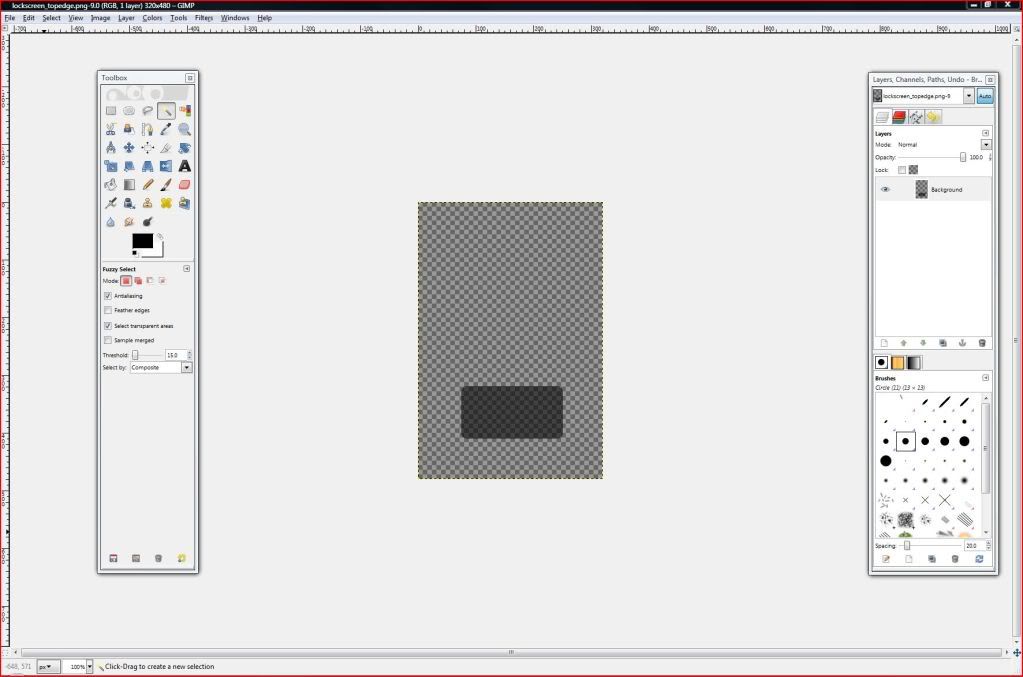
3. Drag the file you want to make into your lockscreen.
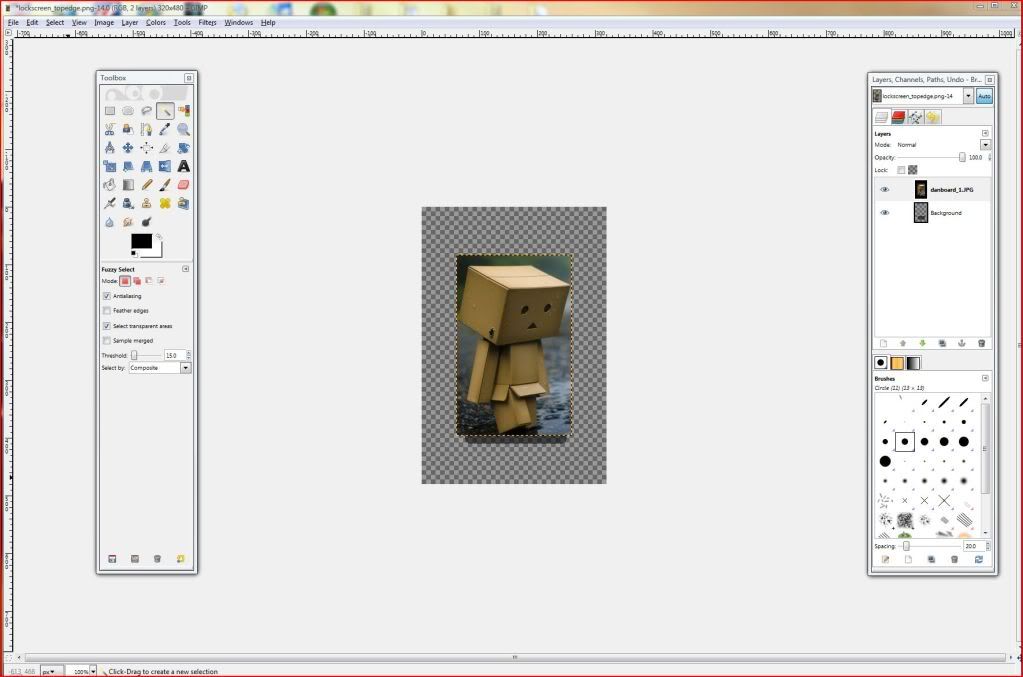
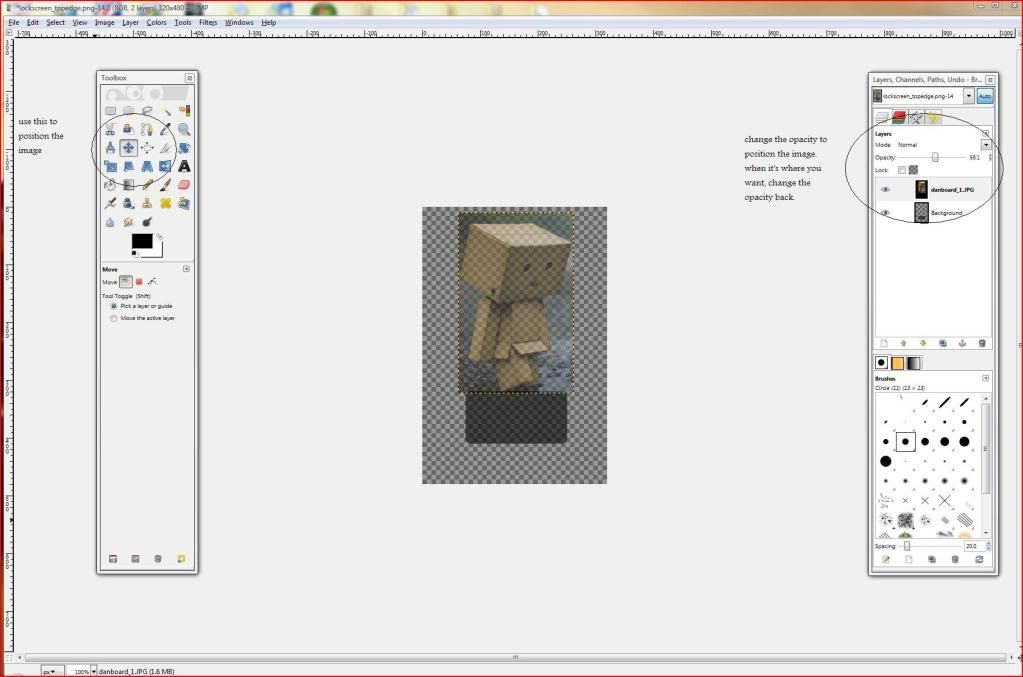
4. Change the opacity so you can position the image using the moving tool. When you are done, make sure you change the opacity back.
5. Select Layer>Transparency>Add Alpha Channel
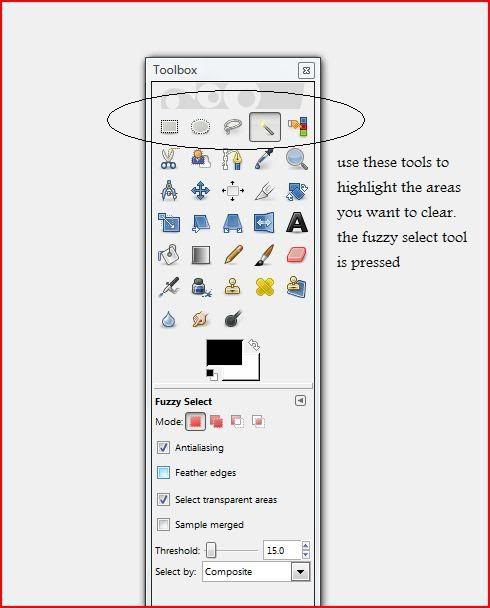
I like to use the fuzzy select tool and the free select tool to highlight the areas I want to clear.
6. select Edit>Clear(delete)
7. Use the zoom tool to get a closer look at the image to clean up.
8. finished image
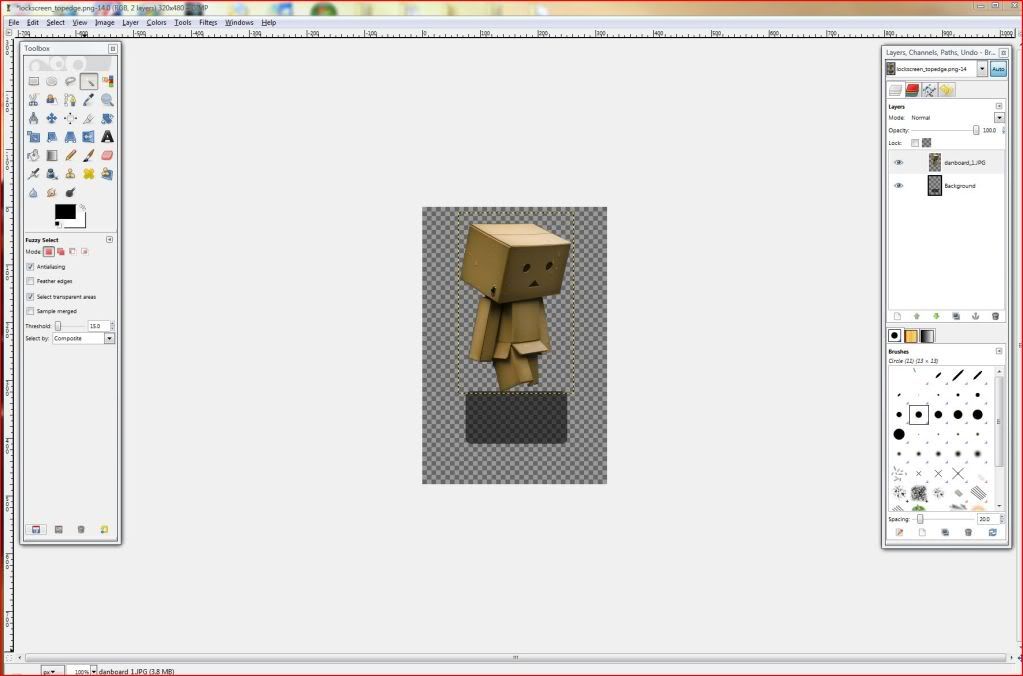
When finished, be sure to save your image as the name of the template, which is lockscreen_topedge.png. Do NOT change it for any reason.
If you wanted to get rid of the gray box that holds a place for the clock, just click it in the layers box and change the opacity to 0%.
I use a program called GIMP (GNU Image Manipulation Program).
Use Scale (Image>Sale Image) to make the image fit the template. The template for the lockscreen is 320x480. The image doesn't have to fit inside the template. If you scale the image to 320x480 it will distort the image.
Overview=
1. Open GIMP
2. Drag the file lockscreen_topedge.png into GIMP
3. Drag the file you want to make into your lockscreen.
4. Change the opacity so you can position the image using the moving tool. When you are done, make sure you change the opacity back.
5. Select Layer>Transparency>Add Alpha Channel
I like to use the fuzzy select tool and the free select tool to highlight the areas I want to clear.
6. select Edit>Clear(delete)
7. Use the zoom tool to get a closer look at the image to clean up.
1. Open GIMP
2. Drag the file lockscreen_topedge.png into GIMP
3. Drag the file you want to make into your lockscreen.
4. Change the opacity so you can position the image using the moving tool. When you are done, make sure you change the opacity back.
5. Select Layer>Transparency>Add Alpha Channel
I like to use the fuzzy select tool and the free select tool to highlight the areas I want to clear.
6. select Edit>Clear(delete)
7. Use the zoom tool to get a closer look at the image to clean up.
8. finished image
When finished, be sure to save your image as the name of the template, which is lockscreen_topedge.png. Do NOT change it for any reason.
If you wanted to get rid of the gray box that holds a place for the clock, just click it in the layers box and change the opacity to 0%.
