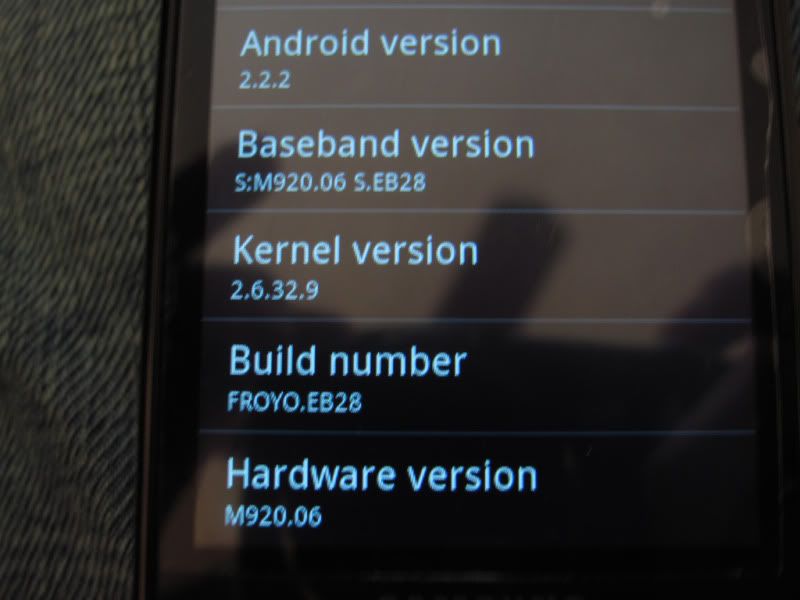
For those of you who are new to Android Phones, here is a simple step by step guide for rooting and also getting your Transform onto Froyo 2.2 if you so wish. This is exactly what I did to get my phone onto Froyo 2.2 and rooted.
Just putting this up, because I know some of you have said you're scared to root/flash because of the possibility to brick your phone.
As always, I am not responsible if something does indeed happen to your phone.
Rooting Samsung Transform
1. Download & Install SWUpdater. -
Free File Hosting, Online Storage & File Upload with FileServe (Reboot computer after finishing the install).
2. Use SWUpdater to flash stock ROM with Skeet Recovery. -
SPH-M920_MR1_DI11A_REL_skeet_recovery.tar - 4shared.com - online file sharing and storage - download
2a.) After downloading the above file, navigate to
C:\Program Files\Samsung Electronics\SWUpgrade\Models\Binary and delete everything inside this folder. In 64bit versions of Windows, you have to go to
C:\Program Files (x86)\Samsung Electronics\SWUpgrade\Models\Binary
2b.) Move the Stock ROM with Skeet Recovery file into
C:\Program Files\Samsung Electronics\SWUpgrade\Models\Binary
3. Start SWUpgrader
(Verify that you are indeed using version 1.0.001 by looking at the title bar) and follow the on screen instructions.
Substitute the End Key with the Transform's Power key.
Congratulations! You are now rooted using Stock ROM and Skeet Recovery.
Flashing/Froyo 2.2
Warning: Use Titanium Backup and sync your contacts/export them to the SD Card before doing the following. All data (apps, settings, contacts) will be erased.
1.) Download this backup file of stock Froyo 2.2. -
system_03222011233420.tar
2.) Download Vamp's Recovery.rfs. -
recovery.rfs
3.) Download Vamp's 2.7 Kernel. -
vampirefo.2.7.kernel.zip
4.) While your Transform is on, connect your USB cable and enable USB storage. On the SD Card, create a directory/folder called "sdx" with three folder's inside of it: "zip", "updates", "backup".
5.) Move the backup file you downloaded in Step 1 inside
/sdx/backup and put Vamp's Recovery.rfs file inside
/sdx/updates and then Vamp's 2.7 Kernel into
/sdx/zip.
6.) Disable USB storage. Turn off phone, and disconnect the USB cable. Boot into Recovery mode.
Press Volume Down + Voice Dial Key + Power buttons in that order.
7.) In recovery mode, you will see a menu with different options. Use the Volume keys to navigate up and down. Navigate to the
"Backup, Restore, Flash" option and hit the Menu soft key to select it.
8.) Select the
"Backup Both" option using the Menu Soft key then the Home key to confirm. This backup will allow you to restore your phone to how it currently is in case something does happen.
9.) Under
"Backup, Restore, Flash", navigate down to
"Flash (Recovery.rfs)", use the Menu soft key to select, then the Home soft key to confirm. This will take a couple seconds to complete.
10.) After that is finished, return to the main recovery menu by using the Back soft key. Select
"Reboot Options" with the Menu key. Select the
"Reboot to Recovery" option. The phone will restart itself and boot back into Recovery automatically.
11.) Once back into Recovery, navigate down to "Go To Console" and select it. Hit the "Ok/Enter" button on your Transform's keyboard, then type the letters "rfs" (Without quotations marks) then hit "Ok/Enter" again. The screen will say Format Successful three times when it is done.
12.) Once back on the main Recovery menu, navigate to
"Backup, Restore, Flash" once again. Inside, select the
"Restore /system" option and select/confirm the backup file containing Froyo 2.2.
(WARNING: Be sure to select the correct file. The one you want is named "system_03222011233420").
13.) After that is done installing, on the main Recovery menu, navigate to
"Apply zip from SD Card". Inside, select the
"Vampirefo_2.7_kernel.zip" file. Press the Menu soft key and the Home soft key to confirm. After it is done installing, you will need to reboot.
14.) On the main Recovery menu, select
"Reboot Options" and select
"Reboot to System". This will boot up the device normally. The first boot up will take a while. After the first time, the phone will boot up faster.
Congratulations! You are now the proud owner of a Rooted 2.2 Froyo Samsung Transform!!!


I sure hope I can force the update tomorrow...