
Install the app
How to install the app on iOS
Follow along with the video below to see how to install our site as a web app on your home screen.
Note: This feature may not be available in some browsers.
-
After 15+ years, we've made a big change: Android Forums is now Early Bird Club. Learn more here.
You are using an out of date browser. It may not display this or other websites correctly.
You should upgrade or use an alternative browser.
You should upgrade or use an alternative browser.
Filters
Show only:

New Game: Ball Balancer Pro (Version 0.4)
- By Paul1984
- Apps & Games
- 1 Replies
There is now free version
https://play.google.com/store/apps/details?id=com.RotGames.BallBalancerFree
https://play.google.com/store/apps/details?id=com.RotGames.BallBalancerFree
probleme with google login to my app
- Android Development
- 0 Replies
hi every one
i have probleme with google login to my app.
whene i ru it im my phone everything is good but whene i download it from google play and try to login using google acompte, the login failed.
any suggestion
thanks
i have probleme with google login to my app.
whene i ru it im my phone everything is good but whene i download it from google play and try to login using google acompte, the login failed.
any suggestion
thanks
New Game: World Art Puzzle (Version 1.0.10)
- By App Update
- Apps & Games
- 0 Replies
WHAT'S NEW
- Added 18 paintings
- Added ability to delete a painting from collection
EXTRA INFO
- Added 18 paintings
- Added ability to delete a painting from collection
EXTRA INFO
- Rating: 0
- Installs: 1+
- Download Size: 30M
- Version: 1.0.10
World Art Puzzle is a classic 15-puzzle game that consists of a painting of numbered square tiles in random order with one tile missing.
You have to slide the tiles to reassemble a painting, by touching the block you want to move.
Game contains:
- 11 themed galleries with a total of over 300 paintings;
- 2 levels of difficulty: with 15 numbers (easy mode) and without numbers (hard mode);
- 43 achivements;
- 1 musical theme and 17 sounds;
- earn game's diamonds for every solved puzzle;
- diamonds can be spent on adding painting to collection or puzzle shuffling;
- added ability to delete a painting from collection;
- help system and detailed descriptions about paintings, genres and artists;
- the game is localized to English, Ukrainian and Russian languages;
Fingerprint login
- VIP Lounge
- 15 Replies
So it was just a matter of time. If the phone had not locked up on me now it would have at some point down the road as soon as it rebooted, so I guess now is as good as later considering that I had saved the important files a week ago.
thinking of getting s9 ....mad?

- By dan55
- Smartphones
- 14 Replies
not so keen on the overly keen app killing :/ ...... even in power mode
Music app to replace Google and/or Apple music?

- Apps & Games
- 8 Replies
You can try using Musicolet. I have been using it for a couple of years now. Simple interface, all basic features, and most importantly its ad free.
Data saver stops alarms
- Smartphones
- 3 Replies
I had to add the alarm to UPSM home screen to get it to work.
No text notifications in galaxy note 10 plus

- By Hadron
- Smartphones
- 8 Replies
Yeah, if the messages are arriving but there are no notifications, and it doesn't matter what SMS app you are using, then somehow the problem has to be with the system notification settings. Unfortunately as I don't have one of these devices I can't know the settings layout or any Samsung-specific options there might be, so I'll defer to my friends here on detailed advice.
Is it just SMS notifications that are affected?
The one other thing I can think of is to make sure your SMS app is excluded from battery optimisation. Just wondering whether the phone might be putting the app to sleep, with the result that it doesn't notify you of message receipt until you wake it up by opening the app?
Is it just SMS notifications that are affected?
The one other thing I can think of is to make sure your SMS app is excluded from battery optimisation. Just wondering whether the phone might be putting the app to sleep, with the result that it doesn't notify you of message receipt until you wake it up by opening the app?
CRAZY ANDROID ERROR
- By markolino
- Android Development
- 1 Replies
Try to use this syntax (no "color" words in your field):
<color name="colorActivated">#caeeff</color>
<color name="primary">#C41230</color>
<color name="primaryDark">#9E0C24</color>
<color name="textPrimary">#000</color>
<color name="accent">#FFCCD4</color>
<color name="colorHighlight">#ffaaff</color>
Here you can found the controls for the material design
https://www.google.com/amp/s/devblo...understanding-the-android-material-theme/amp/
<color name="colorActivated">#caeeff</color>
<color name="primary">#C41230</color>
<color name="primaryDark">#9E0C24</color>
<color name="textPrimary">#000</color>
<color name="accent">#FFCCD4</color>
<color name="colorHighlight">#ffaaff</color>
Here you can found the controls for the material design
https://www.google.com/amp/s/devblo...understanding-the-android-material-theme/amp/
Tecno F1 pro stockrom

- By Davcom
- Smartphones
- 2 Replies
Thanks for your post. My Tecno F1 apps have crashed, I mean, all my apps keeps crashing. I downloaded some stockrom version which flash tool has failed to load. Therefore I want the original version that came with it (f1-vp510efg-go-191023v15), so as to know what the problem really is. I'll appreciate your contribution too. Thanksfirst off this is not news.
second have you looked at techno's website to see if they offer updated firmwares for your phone?
third....what happened? why do you need firmware?
Spyware, malware, hacker? HELP!!
- By Hadron
- Smartphones
- 3 Replies
It depends what device you have. There is no generic answer.
BTW for the OP, when I read that post I made a bet with myself that their birthday would be 1 Jan 1970. It's not that anyone knew their birthday, that the "start date" for Unix operating systems (Andriod is based on the Linux kernel, and Linux is an open-source Unix equivalent). So all that means is that there was no timestamp and the date defaulted to this - it doesn't mean that someone knows your birthday, it's just a coincidence.
BTW for the OP, when I read that post I made a bet with myself that their birthday would be 1 Jan 1970. It's not that anyone knew their birthday, that the "start date" for Unix operating systems (Andriod is based on the Linux kernel, and Linux is an open-source Unix equivalent). So all that means is that there was no timestamp and the date defaulted to this - it doesn't mean that someone knows your birthday, it's just a coincidence.
Replacing Google dialer app
- By ScttLee184
- VIP Lounge
- 2 Replies
Just checked it out. No contacts show at all, just a white screen. Even added a contact and it does not show.
Can't create shortcut on Pixel 3 home screen

- By Brian706
- VIP Lounge
- 4 Replies
So odd that so many didn't work. Now I'm curious if I would have the same problem with others. Glad it worked though and thanks for letting us know.Gee thanks. That worked. I had tried 4-5 file managers and none of them worked. This one did the trick.
Lee
Also ditto @ ocnbrze on es file explorer
Where to post

- VIP Lounge
- 4 Replies
DUO is a video chat, but I am afraid to post any video with just me talking, I am really video shy always has been.
How move photos from "Photos" app to"Gallery" app

- By MoodyBlues
- VIP Lounge
- 15 Replies
Well, @Hadron beat me to it. 
I forgot I had an Instagram account; I had never installed its Android app, so I did that now. Then, when prompted to add a pic to my profile, everything became crystal clear!
As I said in this post: IG doesn't know which gallery app you use; 'gallery' is a generic term for a collection of images; IG's "Gallery" that you're seeing may coincidentally have the same name as your gallery app, but is likely displaying all the images on the device. Yep.
This is what I see when initiating uploading an image using the Instagram app:
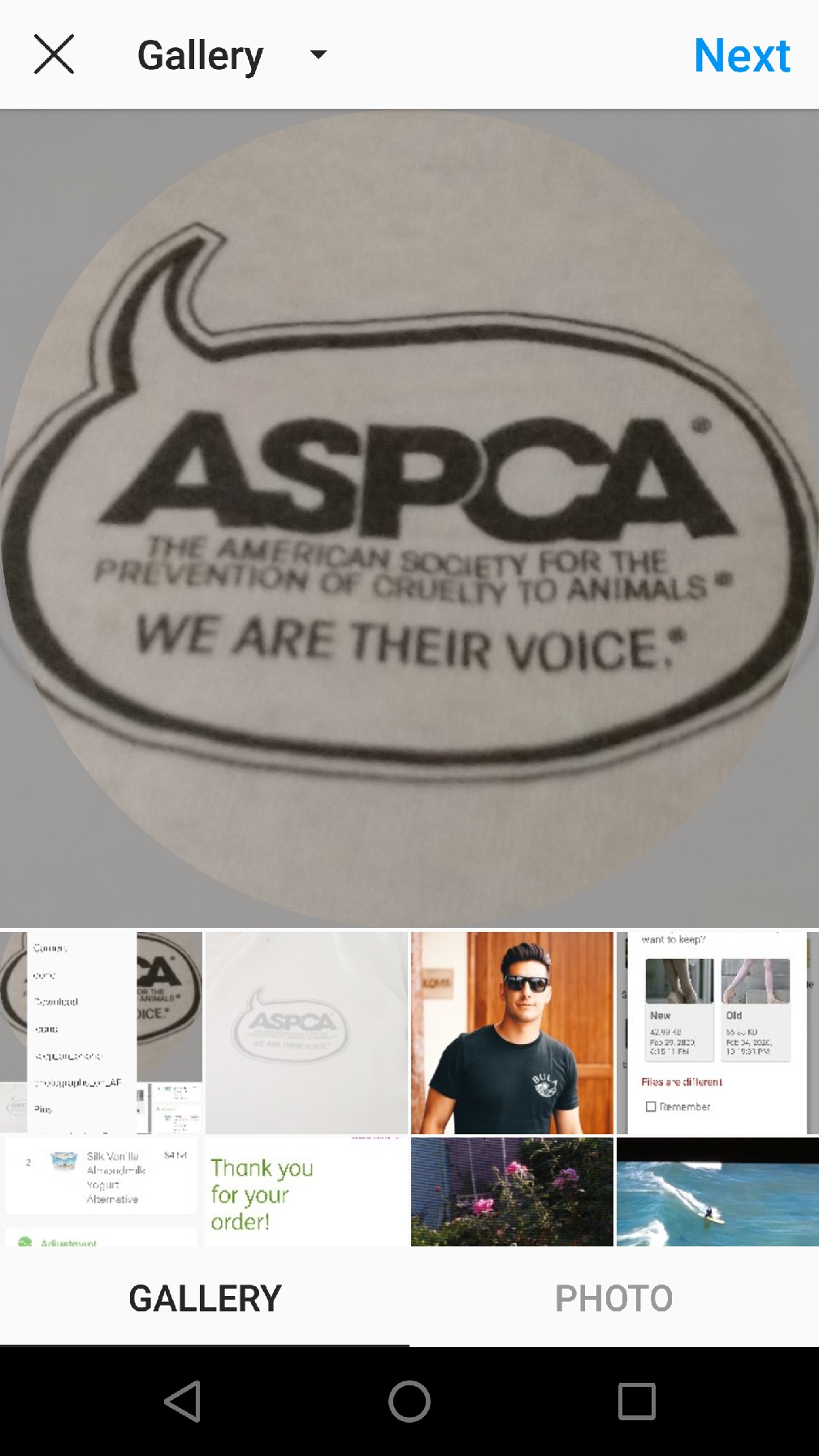
See the word 'Gallery' at the top? That's not the name of your gallery app coincidentally named Gallery--it's a generic word for collection of images. As you can see, it automatically displays various images from my device.
Note the drop-down menu indicator right after the word Gallery, the little, black, down arrow; press it:
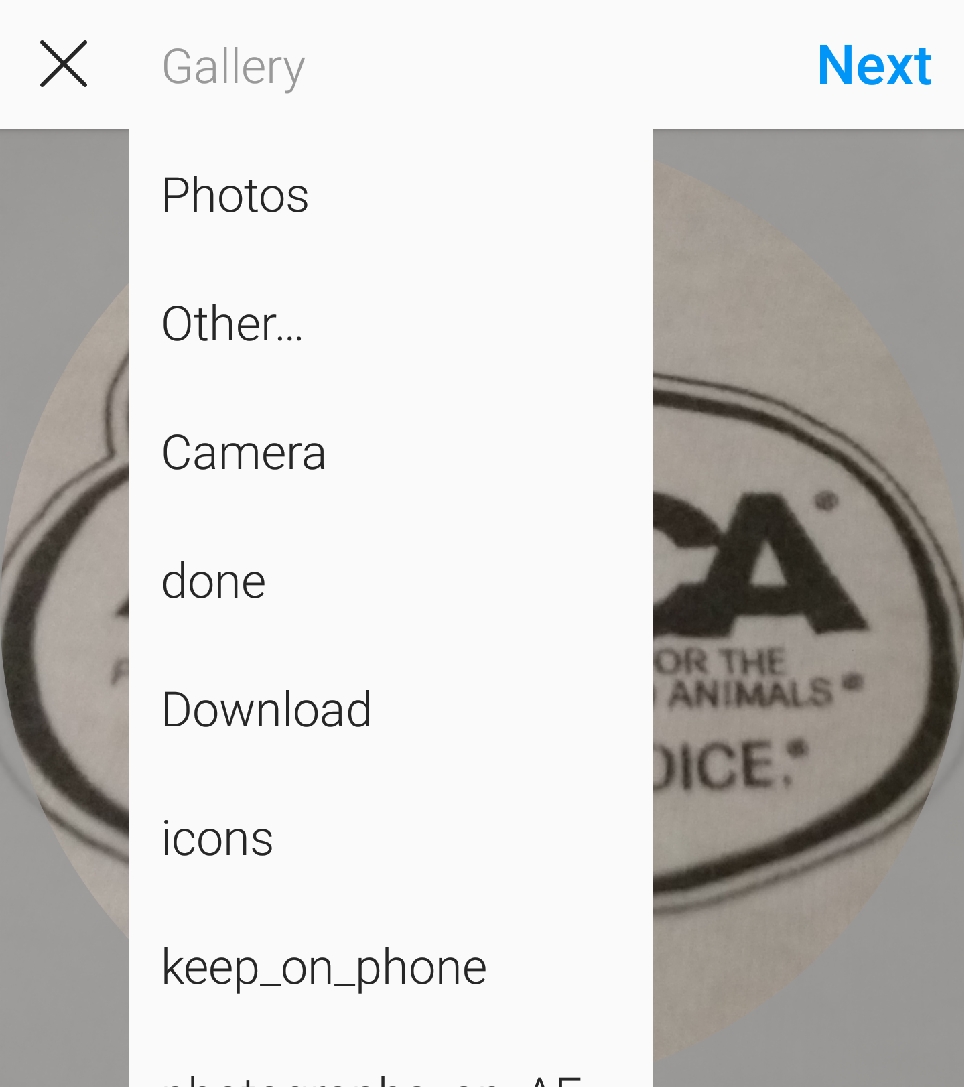
You're now able to choose images from any of the locations listed--which will be different from mine.
Mystery solved!
I forgot I had an Instagram account; I had never installed its Android app, so I did that now. Then, when prompted to add a pic to my profile, everything became crystal clear!
As I said in this post: IG doesn't know which gallery app you use; 'gallery' is a generic term for a collection of images; IG's "Gallery" that you're seeing may coincidentally have the same name as your gallery app, but is likely displaying all the images on the device. Yep.
This is what I see when initiating uploading an image using the Instagram app:
See the word 'Gallery' at the top? That's not the name of your gallery app coincidentally named Gallery--it's a generic word for collection of images. As you can see, it automatically displays various images from my device.
Note the drop-down menu indicator right after the word Gallery, the little, black, down arrow; press it:
You're now able to choose images from any of the locations listed--which will be different from mine.
Mystery solved!
Annoying Android Studio Colors.xml Error
- By markolino
- Android Development
- 1 Replies
Your XML is not well-formed. In general, this error indicates that something is wrong with the range of the start and end tags.
Check all the tags of the xml file that you modify or post here the code.
Hope this help.
Mark.
Check all the tags of the xml file that you modify or post here the code.
Hope this help.
Mark.
Notification icon identification
- By Brian706
- Apps & Games
- 1 Replies
I can't see the image, you need to upload it to the forum.
Based on your description it sounds like it may be from a fitness app.
Based on your description it sounds like it may be from a fitness app.
Help bixby commands while offline?
- By dan55
- Smartphones
- 2 Replies
hi thanks i thought that too but just hangs showing the bixby command popup at top and doesn't screen shot
Help Filming, recording audio and playback to Bluetooth earbuds for drumming

- By ocnbrze
- Apps & Games
- 2 Replies
apparently? i do not know about that. there is always ways or work arounds to be found.Apparently there is nothing
i just found this:
https://play.google.com/store/apps/details?id=io.synople.mideo&hl=en_US
do not how it works, but give it a shot and let us know if it works for you or not.
Recrutement Kc 655
- By ocnbrze
- Apps & Games
- 4 Replies
On se fait beaucoup attaquer inutilement donc de l'aide nous ferais du bien.
Merci pour ceux qui accepterons de venir aider mon alliance.
i believe this is your quote
yes?????We get attacked a lot unnecessarily so help would do us good.
Thank you for those who will accept to come and help my alliance.
Have you received your US Federal Care Package yet?
- By ocnbrze
- Fitness & Health
- 1 Replies
edit: ok i am completely dumb i thought this was real for some reason...LOL
somebody shoot me
i thought this was real for some reason...LOLsomebody shoot me
A thought occured.
- VIP Lounge
- 2 Replies
Never mind, I can do the tracks on my ps3, while on any machine to look up each of the track list.
Enter them in manually, also have it there, while transfering the track list onto my p.c., while having each one there.
I was really not thinking clearly.
Enter them in manually, also have it there, while transfering the track list onto my p.c., while having each one there.
I was really not thinking clearly.
how to turn off a flash led on your device
- By srglassw
- Smartphones
- 2 Replies
My old S3 is my bedside clock/radio and my car GPS. Don't use it as a phone but its still got some uses.Do people still use the s3????
Can't move on

- By puppykickr
- VIP Lounge
- 21 Replies
I believe it's called "bluesnarfing", which is the interception(theft) of information transmitted by a Bluetooth device. Think that's why it's very important to have two factor authentication login wherever you can, especially when using a wireless keyboard. In case some undesirable third-party bluesnarfs your login credentials.
Bluetooth is usually only a few metres range. But if you have the right kit, it can be sniffed from miles away.
Like my little 2.4GHz rig with dual high-gain yagi antennas.
View attachment 149837
Sweet little rig you have there!
I also enjoy playing with radio, albeit on a much more forgiving wavelength- 11m.
I have built different antennas of all sorts and tested even more in the backyard.
The first one I tried was quite the overkill- a ½wave J-Pole around 26ft high made out of 12AWG copper wire.
It wasn't long before we noticed 'black SUVs' cruising around the neighborhood.
(actually, they aren't all black,, lol)
My cat used to 'help' by chasing and pulling the coax as I ran it to and from the garage.
Load more