• After 15+ years, we've made a big change: Android Forums is now Early Bird Club. Learn more here.

Root Restore BackupAssistance

The problem is, are you sure this installs them in system?

Titanium is showing me its back in the system running. I would think since an apk is an apk you know it installed. I have rebooted several times with no issues at all...I could be wrong. It worked for me...
 
Titanium is showing me its back in the system running. I would think since an apk is an apk you know it installed. I have rebooted several times with no issues at all...I could be wrong. It worked for me...

Alright if that works good. But if you do it this way never do a factory reset because it will delete it since it is not in system app but data app
 
Alright if that works good. But if you do it this way never do a factory reset because it will delete it since it is not in system app but data app

I did not know that...Maybe I will push them thru adb shell for good measure...but the chances of me having to do a factory data reset are slim to none...I hope...so using root exploxer, will this allow me to install into the system app folder?
 
I did not know that...Maybe I will push them thru adb shell for good measure...but the chances of me having to do a factory data reset are slim to none...I hope...so using root exploxer, will this allow me to install into the system app folder?

Yeah easiest thing to do. Just use root explorer and copy and paste it to system/app and you have to mount it as R/W first:D
 
Yeah easiest thing to do. Just use root explorer and copy and paste it to system/app and you have to mount it as R/W first:D

The only problem is that, for me, it did not make BackupAssistant show up in the Apps Drawer, and it did not make the Backup Assistant link work in Settings.

I also placed the 2 apks in the System/app folder, and installed them from there. This made them show up in the App Drawer and Settings, but they seem to be installed to the Data/App folder instead of the System/App folder. Titanium is showing them running as user processes instead of system processes. I believe that they will be wiped out on a Factory Reset. Has anyone confirmed that any of these methods saves you from a brick on a Factory Reset?
 
The only problem is that, for me, it did not make BackupAssistant show up in the Apps Drawer, and it did not make the Backup Assistant link work in Settings.

I also placed the 2 apks in the System/app folder, and installed them from there. This made them show up in the App Drawer and Settings, but they seem to be installed to the Data/App folder instead of the System/App folder. Titanium is showing them running as user processes instead of system processes. I believe that they will be wiped out on a Factory Reset. Has anyone confirmed that any of these methods saves you from a brick on a Factory Reset?

If you are not sure don't do a factory reset. I am not sure why it would have not installed in system app if it was there in the system/app
 
If you are not sure don't do a factory reset. I am not sure why it would have not installed in system app if it was there in the system/app

Yeah, I assumed that just dropping them into the system/app folder would be enough to have them show back up, but it didn't seem to "install" them. I guess I will wait for some brave soul to try a factory reset before I do it.
 
Yeah, I assumed that just dropping them into the system/app folder would be enough to have them show back up, but it didn't seem to "install" them. I guess I will wait for some brave soul to try a factory reset before I do it.

So you tried to install them right
 
Ok, I think I have it figured out for my phone. Here are my steps to get Backup Assistant installed as a system app where it shows up in the App Drawer and the link in Settings works. Titanium Backup confirms that it is installed as a system app (name shows up as red).

1. Take the 2 files (BackupAssistentClient.apk and BuaContactAdapter.apk) and install them using Root Explorer or Astro. This will install them to the Data/App directory (as seen with Root Explorer).

2. Make the System/App folder read/write by pressing the "Mount R/W" button at the top of Root Explorer.

You can also make the System/App folder read/write with this command in ADB:
mount -o remount,rw -t yaffs2 /dev/mtd/mtdblock4 /system

3. Move the installed Apks from Data/App to System/App with Root Explorer. They may be named com.motorola.android.buacontactadapter.apk and com.motorola.BackupAssistantClient.apk in the Data/App folder. I don't believe that there is any need to rename them, but I am not positive.

4. Make the System/App folder read only by pressing the "Mount RO" button at the top of Root Explorer.

You can also make the System/App folder read only again with this command in ADB:
mount -o ro,remount -t yaffs2 /dev/mtd/mtdblock4 /system

5. Make sure that Backup Assistant shows up in the App Drawer and that the link in Settings works.

I HAVE NOT tested the Factory Reset after doing this.
 
Ok, I think I have it figured out for my phone. Here are my steps to get Backup Assistant installed as a system app where it shows up in the App Drawer and the link in Settings works. Titanium Backup confirms that it is installed as a system app (name shows up as red).

1. Take the 2 files (BackupAssistentClient.apk and BuaContactAdapter.apk) and install them using Root Explorer or Astro. This will install them to the Data/App directory (as seen with Root Explorer).

2. Make the System/App folder read/write with this command in ADB:
mount -o remount,rw -t yaffs2 /dev/mtd/mtdblock4 /system

3. Move the installed Apks from Data/App to System/App with Root Explorer. They may be named com.motorola.android.buacontactadapter.apk and com.motorola.BackupAssistantClient.apk in the Data/App folder. I don't believe that there is any need to rename them, but I am not positive.

4. Make the System/App folder read only again with this command in ADB:
mount -o ro,remount -t yaffs2 /dev/mtd/mtdblock4 /system

5. Make sure that Backup Assistant shows up in the App Drawer and that the link in Settings works.

I HAVE NOT tested the Factory Reset after doing this.

Couldn't you take out the adb commands by pressing mount R/W in the top right of root explorer
 
<a href="http://s169.photobucket.com/albums/u229/wevansjr/?action=view&current=WTF.jpg" target="_blank"><img src="http://i169.photobucket.com/albums/u229/wevansjr/WTF.jpg" border="0" alt="Photobucket"></a>

Not sure what is going on here...

WTF.jpg
 
Quick question, I used the directions above (Root Explorer) to get cityid back on phone. I thought it worked...... well the app does at least. However I went to try and get the system update and it still wouldn't go through.

So, I went into root manager. Under "App Remover" it's listed as "com.cequint.cityid.apk" and under "Data Remover" as well. Shouldn't it read "cityid.apk" under "App Remover"?

And what happens if I remove something using "Data Remover"?
 
When Froyo comes...Will this at all affect my download? I know there is potential...But not having these two apps installed, will this brick my phone when froyo reboots after install?
 
Ok, I think I have it figured out for my phone. Here are my steps to get Backup Assistant installed as a system app where it shows up in the App Drawer and the link in Settings works. Titanium Backup confirms that it is installed as a system app (name shows up as red).

1. Take the 2 files (BackupAssistentClient.apk and BuaContactAdapter.apk) and install them using Root Explorer or Astro. This will install them to the Data/App directory (as seen with Root Explorer).

2. Make the System/App folder read/write by pressing the "Mount R/W" button at the top of Root Explorer.

You can also make the System/App folder read/write with this command in ADB:
mount -o remount,rw -t yaffs2 /dev/mtd/mtdblock4 /system

3. Move the installed Apks from Data/App to System/App with Root Explorer. They may be named com.motorola.android.buacontactadapter.apk and com.motorola.BackupAssistantClient.apk in the Data/App folder. I don't believe that there is any need to rename them, but I am not positive.

4. Make the System/App folder read only by pressing the "Mount RO" button at the top of Root Explorer.

You can also make the System/App folder read only again with this command in ADB:
mount -o ro,remount -t yaffs2 /dev/mtd/mtdblock4 /system

5. Make sure that Backup Assistant shows up in the App Drawer and that the link in Settings works.

I HAVE NOT tested the Factory Reset after doing this.

How do you mount the system and are still be able to run adb commands:confused: Need help
 
I'm sorry, I am not sure what you asking. How are you mounting the system (root explorer, adb)? What adb commands are you trying to run?

through adb
I run adb shell and get the #
then run mount -o remount,rw.....etc to mount the system
then I can not run any more adb commands
 
through adb
I run adb shell and get the #
then run mount -o remount,rw.....etc to mount the system
then I can not run any more adb commands

I am not positive, as I did not try to run any other adb commands. Did you try to open another command prompt and run adb shell from there?
 
I am not positive, as I did not try to run any other adb commands. Did you try to open another command prompt and run adb shell from there?

Alright I will give it a try but I am going to pick it back up tomorrow
 
<a href="http://s169.photobucket.com/albums/u229/wevansjr/?action=view&current=WTF.jpg" target="_blank"><img src="http://i169.photobucket.com/albums/u229/wevansjr/WTF.jpg" border="0" alt="Photobucket"></a>

Not sure what is going on here...

WTF.jpg

Can anybody make sense of this?
 
IF YOU BRICK YOUR PHONE I AM NOT RESPONSIBLE!!!!!!!

So you know...(correct me if I am wrong) but when using titanium, system apps are showed in red correct??? Yes (I hope) or this method didn't work.


I finally got both files to show in red!!! Great news I know... hold the applauds..:D

WILL NEED ROOT EXPLORER TO DO THIS!!!

1. Download both files at the top of this thread "BuaContactAdapter.apk" & "
BackupAssistanceClient.apk"

2. Download both Root explorer and Astro file manager (Astro, cuz it creates a back up folder on sd.) OR you can just move the 2 downloaded apk's to your sd card. dismount SD card when finished.

MUST MOVE TO SD CARD BEFORE PROCEEDING!

3. Install both files using either file manager. Great, done!!!
4. Open Root Explorer push the r/w button located top right corner. Go to data/app folder and find "com.motorola.android.buacontactadapter.apk" long press file. select move. press back button and go to system/app push paste.
note
If you can't paste into system/app you'll have to press the mount r/w button first then paste.

press quickly "com.motorola.android.buacontactadapter.apk" and install.

Repeat the same step for "com.motorola.BackupAssistantClient.apk."

5. Using root explorer, go to sdcard/what ever folder you moved the two apks to.

6. long press "BackupAssistanceClient.apk" select move, press back button on phone go to system/apps paste. Press quickly and install.

Do the same for "BuaContactAdapter.apk"

After done press the mount r/o button and back out or exit root explorer.

Reboot phone: Open titanium and find both the backup and bua contact apk's in red showing they are installed in system/app folder.

 
Is there an alternative to Root Explorer?

Yes I think
Create a folder on your sdcard named something that you will recognize as the two apks
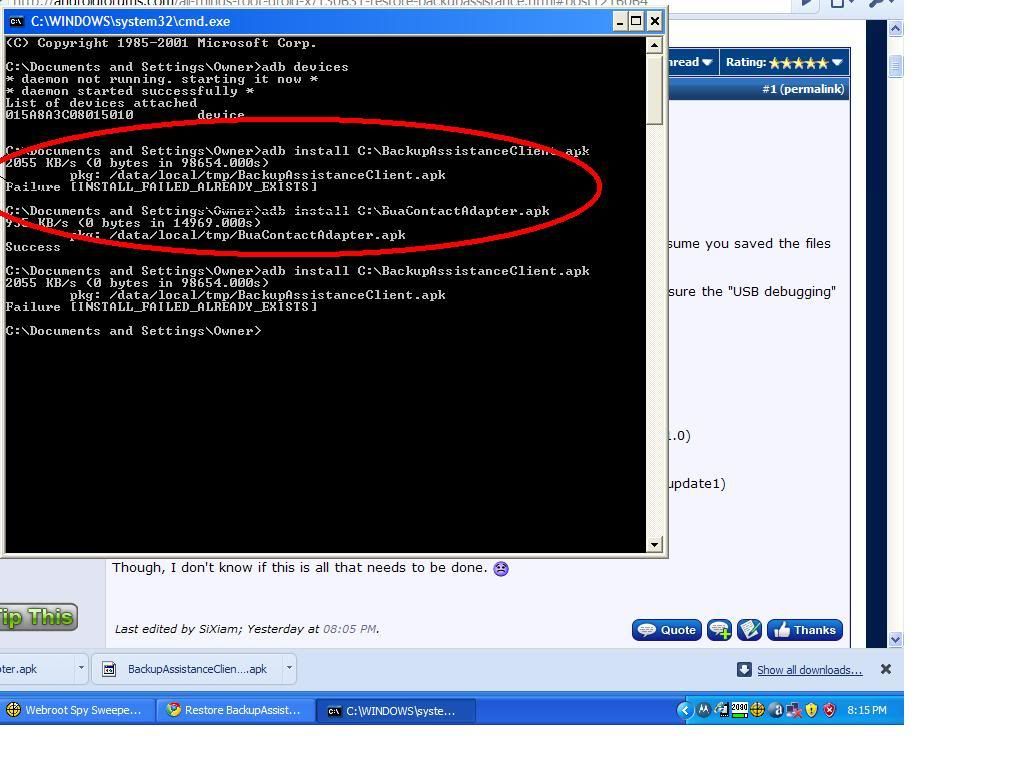
1.Download both the files and put them in your tools folder, where adb.exe should be
2.Connect your X to the computer and get it ready for adb, debugging active,etc.
3.In cmd do
adb push BackupAssistanceClient.apk /sdcard/nameyouchose
adb push BuaContactAdapter.apk /sdcard/nameyouchose
adb shell
mount -o remount,rw -t yaffs2 /dev/mtd/mtdblock4 /system (don't close out of it)
4.Go into to astro and into that folder and install both of the apks
5.Back in cmd do
cp /sdcard/nameyouchose/BuaContactAdapter.apk /system/app
cp /sdcard/nameyouchose/BackupAssistanceClient.apk /system/app

Maybe:D
 
Back
Top Bottom