• After 15+ years, we've made a big change: Android Forums is now Early Bird Club. Learn more here.

Developing Password Manager application for ICS/Honeycomb in 30 Days

Fields is the most important part of a card. What operations do users need for fields?

  • Add a new field - Yes
  • Delete an existing field - Yes
  • Modify existing field properties (Name, Type) - probably No (very rare)
  • Reorder fields - the same, probably No

So, I decided to implement the first two actions, but skip the last two for a cleaner and simpler user interface.

Pressing the Add another field button brings a popup with field types. These types determine the type of online keyboard used for a field editing (text, numeric, or optimized for specific data).
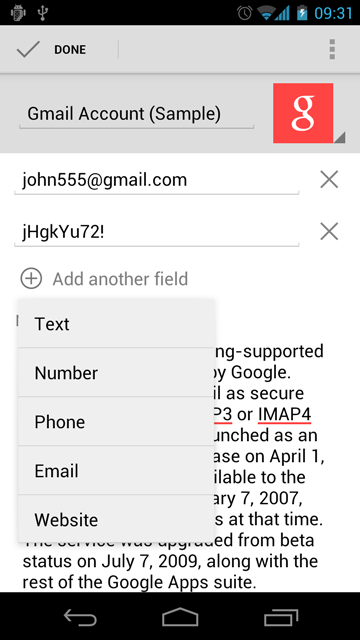
add_field.png

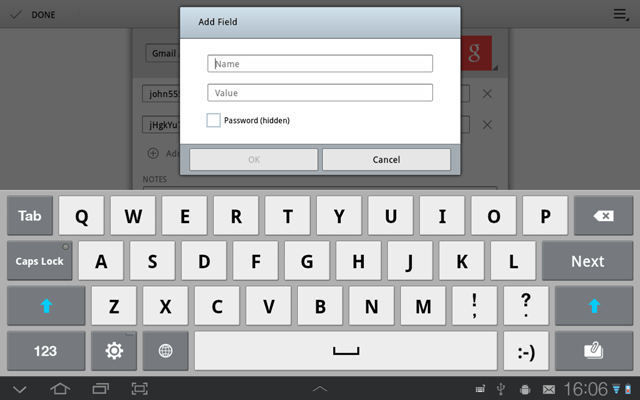
Then the Add Field dialog appears, where a user can enter a field name and a field value.
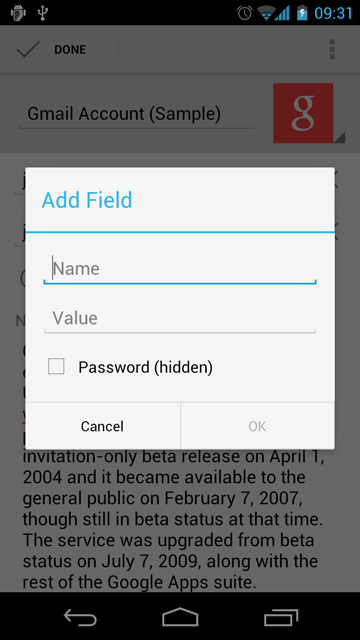
add_field_dialog.png

There are cross icons next to each field. Pressing such icon brings a confirmation popup (instead of the standard modal confirmation message box). This approach is more easier and faster for a user, because his finger already in a right place. I got it from Android ICS Gallery app (image deletion).

delete_field.png
 
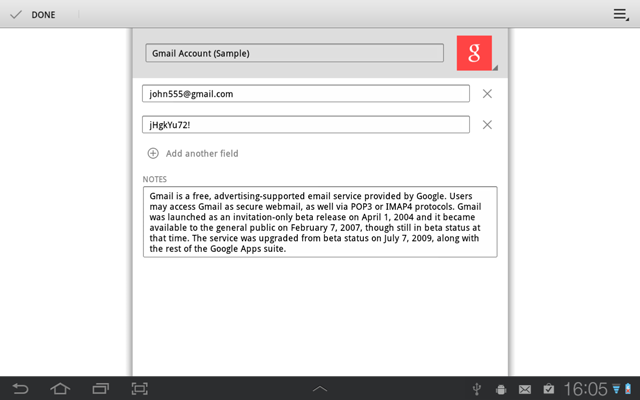
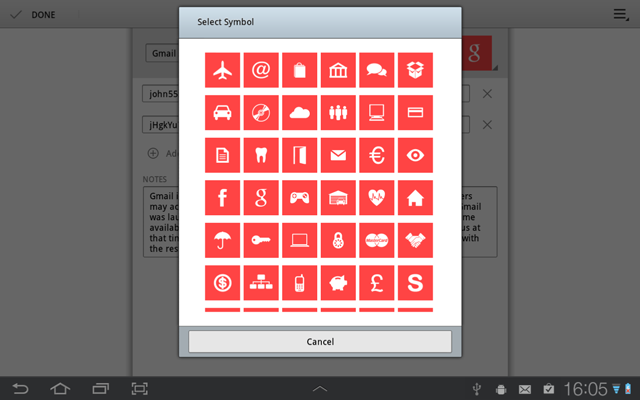
Finally, here are the card editing screenshots from a tablet. Note that I made the editing area narrower than the whole screen width for a better user experience (Gmail app uses the same trick).

edit_card.png


select_symbol.png


add_field_2.png
 
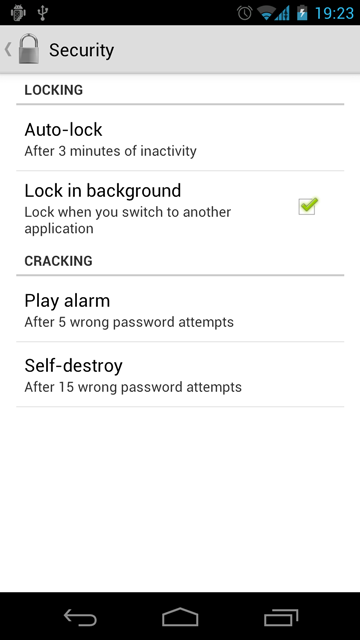
Today's topic is a security settings. The first group is about locking the app when a user forgot to:
  • Auto lock after some period of user inactivity.
  • Locking in background (when a user switched to an another app).

The second group is about protection from cracking a password:
  • Play an alarm after X wrong password attempts.
  • Wipe all data after Y wrong password attempts.

Here is how it looks on Galaxy Nexus:

security.png
 
You cannot overestimate the importance of localizations. People speak many languages and most of them prefer using apps on their native language. So, it is very important to localize Safe In Cloud for its adoption outside US and UK.

Here is my current priority list for localizations:
  • Europe: German, French, Dutch, Italian, Spanish, Portuguese, Russian
  • Asia: Korean, Chinese (simplified + traditional), Japanese
  • Others: Eastern Europe languages, Hindi

So, my idea is
  • Start with a minmal set of localizations (English, Dutch).
  • Then consistently add localizations one by one.

The main question is how to do these localizations. There are different ways:
  • Order from some big localization company (e.g. Lionbridge). The cons: expensive, slow (as any big company), no knowledge of Android specifics. The pros: some quality guarantee.
  • Look for freelance translators on the numerous sites on the Internet. The pros: cheap. The cons: questionable quality and management time required for working with each of freelancers.
  • Ask users and beta testers for help with translations. The pros: knowledge of Android specifics and the application itself. The cons: also management time.

I think I will try all the above ways, but I prefer the last one. Users are the best translators. So, the question is how to organize the localization process with minimum hassle for a user. I am going to use the Google's Translator Toolkit - the online localization tool based on Google Translate.
 
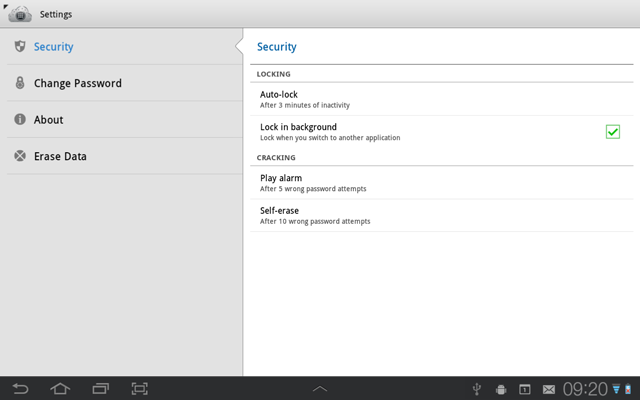
You already saw Security settings on Nexus. Now I added more settings. Here is the full list:
  • Security
  • Change Password
  • About
  • Erase Data

The only missing setting now is Cloud Sync. This is what I will do next week.

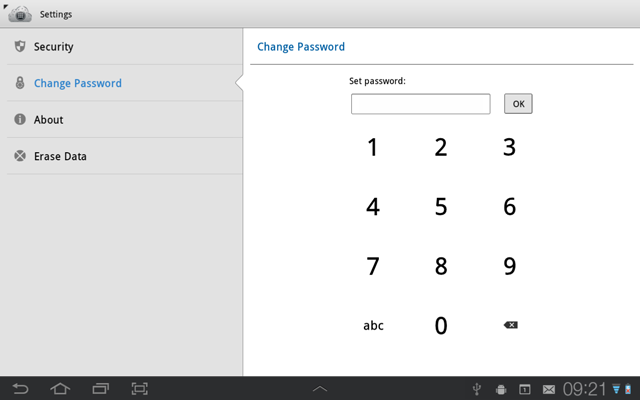
And here are the screenshots from a tablet:

security_tab.png


change_password_tab.png
 
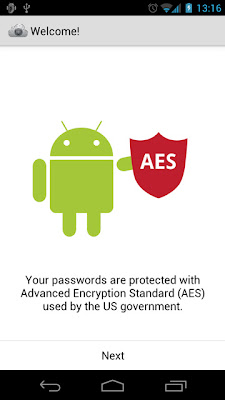
Safe In Cloud uses 256-bit Advanced Encryption Standard. This is the algorithm widely used by the US government and also worldwide. But even using the strongest algorithm can result in a weak security if you do not know how to use it properly. I spent quite a long time on this matter and finally decided to copy-paste the approach used in Android backup system.

Here is the short description of how it works for those geeks who know words like salt, IV, rounds, secret key...

Encryption:
  1. Input the password form a user.
  2. Generate the random user salt (512 bits). Save it. Here and later 'save' means save openly along with encrypted data and use later for decryption.
  3. Calc (PBKDF2WithHmacSHA1) the user key from the user password and the user salt (256 bits, 10K rounds).
  4. Generate the random master key (256 bits).
  5. Generate the random check sum salt (512 bits). Save it.
  6. Calc (PBKDF2WithHmacSHA1) the check sum (hash) from the master key and the check sum salt (256 bits, 10K rounds).
  7. Create a cipher (AES/CBC/PKCS5Padding) and init with the user key (the user cipher). The user cipher's initialization vector (IV) is generated. Save it.
  8. Create a cipher (AES/CBC/PKCS5Padding) and init with the master key (the master cipher). The master cipher's initialization vector (IV) is generated.
  9. Take the master cipher's IV + the master key + the check sum of the master key (the master key blob). Encrypt altogether using the user cipher and save it.
  10. Now encrypt any user data using the master cipher and save it.

Decryption (opposite to encryption):
  1. Input the password form a user.
  2. Read the user salt.
  3. Read the check sum salt.
  4. Calc the user key from the user password and the user salt.
  5. Read the user cipher's IV.
  6. Create the user cipher and init it with the user key and the user cipher's IV.
  7. Read the master key blob and decrypt it with the user chiper.
  8. Calc the check sum from the decrypted master key and the check sum salt that we red at step 3.
  9. Compare the calculated check sum and the decrypted one. Should be the same if the user password is correct.
  10. Create the master cipher and init it with the master key and the decrypted master cipher's IV.
  11. Read user data and decrypt it with the master cipher.
 
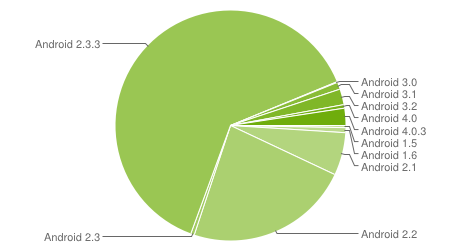
Today Google updated the Platform Versions figures. Ice Cream Sandwich devices almost doubled since March 5. It was 1.6%. Now it is 2.9%.

android_chart_3-04-12.png

I expect that ICS market share will grow much faster in coming weeks. New ICS devices are coming: Samsung Galaxy III, HTC One X/V/S, Sony Xperia and other. Also ICS updates continue to rolling out for the existing devices.
 
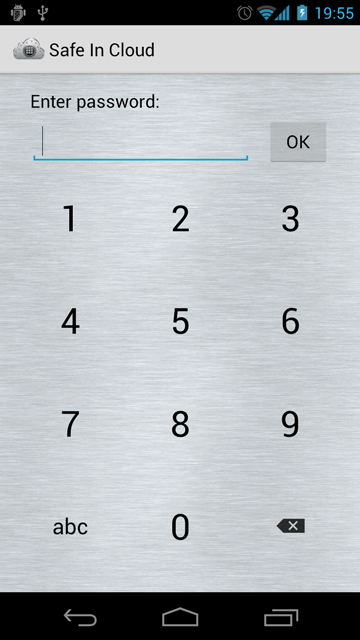
Originally I designed Login screen without a confirmation button. I thought that evaluating a password on the fly is better for user experience.

Today I realized that this approach will not work due to the decryption slowness. The decryption process described above takes 3.6 seconds on my Galaxy Nexus. And 99% of this time is taken by the password verification part (steps 1-9). So, I added the OK button that fires the password validation.

login_screen_3.png


PS. I also managed to to optimize the algorithm from 3.6 to 1.8 seconds by reducing the check sum generation rounds from 10000 to 1000. This has no impact on security, but saves 50% of time.

PPS. Actually PKCS #5 (Password-Based Cryptography Specification) recommends 1000 rounds for the user key generation. But it was written back in 2000 and now CPU speed increased. So, I kept 10000 rounds for the user key for the uncompromised security.
 
Today is the last day of my 30-day development experiment. I will write the summary tomorrow. And the beta version will be available next Monday (April 9).

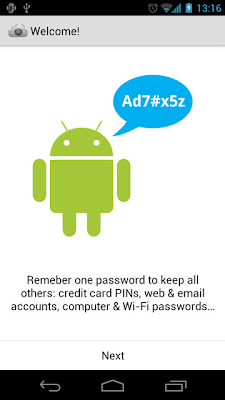
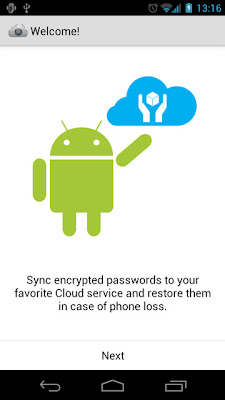
Meanwhile I would like to show the screenshots that a user sees at the first app launch. The idea behind these screens is to educate a user about the app functionality.

welcome_1.jpg
welcome_2.jpg
welcome_3.jpg
 
30 days ago I started developing a Password Manager application for Android Ice Cream Sandwich. This application should have a user interface that
  • Has a native ICS look and feel;
  • Follows ICS design patterns;
  • Is simple to use, yet feature complete.

I managed to accomplish this task and now have the app with the following functions:
  • Create a database and set a password.
  • Perform login with password validation.
  • Store data using 256-bit Advanced Encryption Standard.
  • Create cards based on pre-designed and custom templates.
  • Organize cards using labels.
  • Search through cards.
  • Edit cards including their title, symbol, color and fields.
  • Automatically lock the app after a predefined idle time and in the background.
  • Prevent a password cracking with an alarm and self-erase features.

I didn't have time to implement cloud synchronization though. This is my task for the next few weeks. Meantime I will start the beta testing. The first beta version will be available next Monday (April 9) here:

Safe In Cloud Beta

Have a nice weekend!
 
The beta version is available now at Beta page: Beta

There are also Video and Screenshots page for you to get what it is all about:
Video
Screenshots

I will appreciate any feedback:
  • Bug reports: please write all details, steps and results - so, we can reproduce a bug.
  • Feature suggestions: please describe a feature itself and the reason behind it.
  • UI improvements: please provide some sketches for better understanding.
  • Offers of help: translations, reviews, promotions...

All contributors will be listed in About screen of the app (Settings > About).

You can write your feedback in the comments on this page: Feedback

Or send via email info@safe-in-cloud.com.
 
This Monday I published the first beta version of Safe In Cloud password Manager app for Android ICS. There were a few positive feedbacks - I do appreciate this. Thanks you!

There were no bug reports. The beta has a built-in bug reporting based on a combination of:

So, all seems to go well for now.

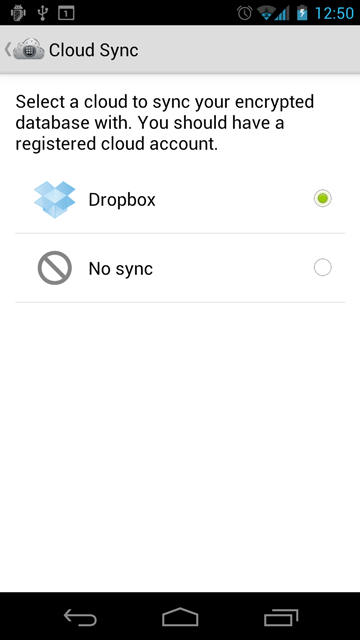
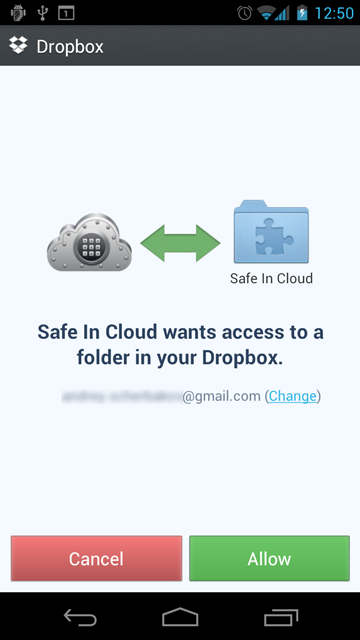
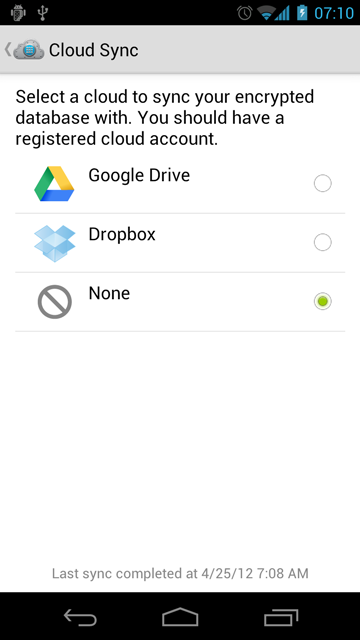
During this week I worked on Dropbox integration (I am planning to add Box and hopefully Google Drive support after that). I took more time than I expected and the beta v0.2 with Dropbox synchronization will be ready on the next week. Here are the screenshots:

cloud_sync_setting.png
dropbox_access.png
 
The Dropbox synchronization is still in progress. Meanwhile I want to share some feedback I've got from a beta tester.

It was about a possibility to backup/restore Safe In Cloud database to/from an SD card, not a cloud. The reason is obvious - some people more care about their privacy and less trust to the Internet and clouds. Others prefer a comfort and simplicity of a cloud synchronization. So, we should respect all of them as far as it does not make the app less clean and usable.

So, I am planning to add this feature in the future updates (not in the first release). It will be an additional item in Settings: SD Backup/Restore.

  • The backup action asks a name for a backup file (with a suggestion like "SafeInCloud_DD-MM-YYY.db") and stores it to an SD card.
  • The restore is more complex. I don't want to make a user browsing for a file through a folder tree. I think it will be just a list of backup files. The app will automatically scan an entire SD card and show only suitable files to a user.

PS. There are more and more rumors about the upcoming Google Drive: Google Drive to launch next week with a free 5GB
 
There is a new application icon. The changes that make it ICS-style:
  • Added an accent color (blue)
  • Changed the isometric projection

about_icon.png

Here how it looks on a phone:

app_icon.png
 
Here is another user feedback I've got yesterday:
  • Open a card
  • Press the Home button
  • Press the Task switcher button

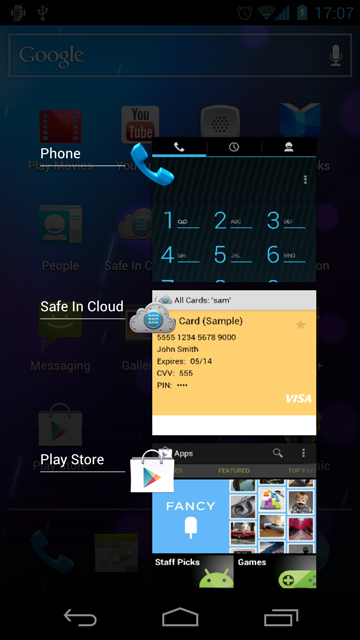
Result - the card content is visible. See how it looked:

task_list_before.png

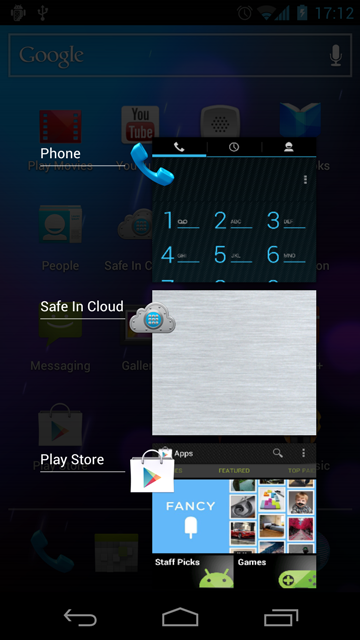
And how it looks now after the fix:

task_list_after.png
 
The Dropbox synchronization is almost ready and I need 5 beta testers for it. This is due to the Dropbox usage policy. Currently Safe In Cloud is in the Development status (as a Dropbox app). After a quick closed beta testing I will apply for the Production status and then everyone will be able to test.

So, please send your request to participate at info@safe-in-cloud.com. Please provide:

  • Your Dropbox login (email address)
  • Your device(s) model & Android OS version

After the weekend I will choose 5 testers and send them a link for the beta version APK with some additional instructions.
 
Today I want to explain some basic concepts of the synchronization and how it is implemented in Safe In Cloud. Since yesterday (April 23, 2012) you can try it yourself. Get the latest beta version here:
Safe In Cloud - Password Manager application for Android Ice Cream Sandwich: Beta

At the first start Safe In Cloud app creates a local database on your phone. Then you fill this database by creating cards, templates and labels. After setting the cloud synchronization, Safe In Cloud uploads the local database file to the cloud. In case of Dropbox the following file is created: Dropbox/Apps/Safe In Cloud/SafeInCloud.db. This is the cloud database.

The primary use case for the cloud database is restoring data. For example, you bought a new phone. To get your passwords on the phone you just need to install Safe In Cloud app and select Restore database from a cloud in the setup wizard. The cloud database will be downloaded to the phone and you are ready to go.

What about changes you make in Safe In Cloud app on the phone? They are immediately saved to the local database, but not to the cloud database. The changes are pushed to the local database at specific moments:

  • When you switch to another app and bring Safe In Cloud app to the background
  • When you unlock Safe In Cloud app

The synchronization was designed to work with multiple devices. For example, you can have a phone and a tablet. You add a card on the phone. Then this card is pushed to the cloud database. And then the card is pushed from the cloud database to the tablet. It is important to remember that each push happens only at the moments listed above, not immediately.
 
Google Drive was released yesterday with a big buzz. So, I will be busy next few days adding GDrive synchronization to Safe In Cloud. I am very excited and try to complete it as soon as possible.

gdrive.png
 
The application's rating and reviews in Google Play Store are very important for the app sales. So, it is a common practice nowadays to ask users for rating from inside the app. This works, but it might also annoy users.

  • So, lets see at the wrong way of implementing this:
  • A user starts the app.
  • The app shows a modal dialog that asks for rating.
  • In the worst case a user even cannot cancel the dialog.

Such implementation interrupts a user from his current task and force to do something else. Not good!

The right way:
  • A user starts the app.
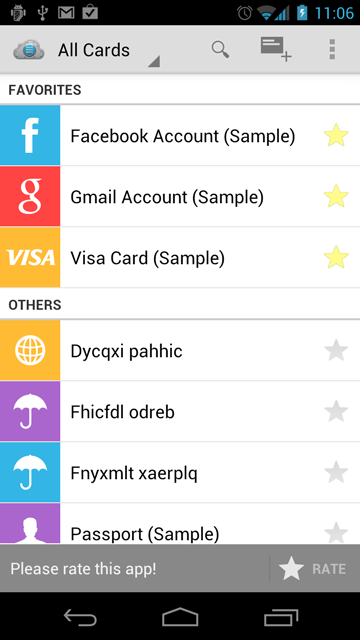
  • A small note appears on the bottom of the screen. With a short and clear text and the RATE button.
  • A user can press the button and rate the app.
  • Or he can ignore the note and do his task. In this case the note automatically disappears.
  • It is even better to show the note with some interval (e.g. once a day or two), but not at every app start.

The similar notes are used in the Gmail app for rolling back user actions.

And here is the screenshot from Safe In Cloud.

rate_note.png
 
A few days ago I wrote about the fix that hides private info in the system task switcher:
Safe In Cloud - Password Manager application for Android Ice Cream Sandwich: Safe In Cloud Beta testing: More user feedback

Steps to reproduce:
  • Open a card in Safe In Cloud app
  • Press the home button
  • Wait 1-2 seconds
  • Press the task switcher button

The expected result: the app thumbnail is a steel rectangle.

It appeared that the fix works on Android 3.2 and Android 4.0 - 4.0.2. Unfortunately, it does not work on Android 4.0.3 - 4.0.4. It seems something was broken inside Android 4.0.3 and an application cannot control its own thumbnail in the system task switcher anymore (a bad optimization?).

I submitted this as a bug and will look for a workaround:
Issue 29370 - android - Activity's onCreateThumbnail() is never called on Android 4.0.3/4 - Android - An Open Handset Alliance Project - Google Project Hosting
 
Finally, the beta version 0.3 is ready with Google Drive synchronization support. Get it here:
Safe In Cloud - Password Manager application for Android Ice Cream Sandwich: Beta

The implementation details:

  • The authorization dialog will ask for Google Documents access permission, not for Google Drive access. This is due to the fact, that the current Google Drive API is intended for web application only. So, Google advises to use Google Documents API that also allows to access Google Drive files.
  • The database file name is SafeInCloud.db and it is located in the root of Google Drive.

In the next few days I will add Box synchronization support.

I am also planning to write an overview about my developer's experience with all 3 clouds: Dropbox vs Google Drive vs Box.
 
Back
Top Bottom