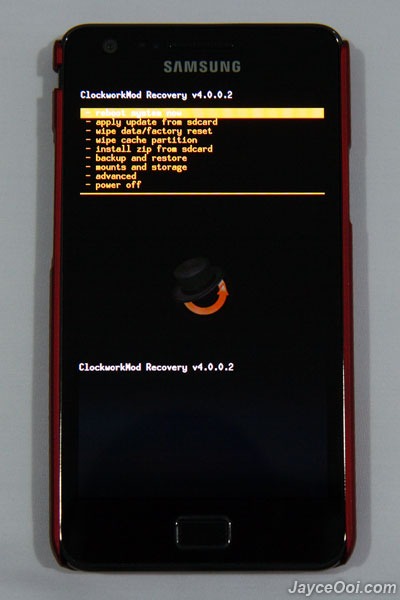
If you have the zedomax kernel installed already and the ShoStock2 zip file copied to yuor phone, then here we go ....
COPY ALL YOUR IMPORTANT DATA TO A SAFE PLACE -- WHAT YOU ARE ABOUT TO DO IS GOING TO WIPE YOUR PHONE!
With your phone charged at least above 80% (full would be better) and unplugged from USB and/or the charger, press and hold the vol. up, vol. down and power button until you boot into CWM.
Step 1. Back up your phone. Use the vol. up/down buttons to highlight Backup and restore. Press home to select. Choose backup and perform a backup to save your phone in this state should something happen during flashing. This takes a while and may appear to stall several places during the backup. Let it run and be patient. When it's done, use the back key to return to the main CWM menu (above).
Step 2. Select wipe data/factory reset. This will remove your personal data and put the phone in a clean state. It is important to do this when flashing any rom. When that option is highlighted, press home to selct. You'll have to scoll again to the confirmation and press home again. This operation is pretty quick. When done, press the back button as many times as necessary to get to the main CWM screen.
Step 3. Clear the cache. Some say this is optional for roms, but because ShoStock includes a new kernel too, I always do this. Same method ... highlight wipe cache partition. Press home to select. Scroll to confirmation and press home again to wipe. Then back to the main CWM screen.
Step 4. Install ZIP from SD card. Highlight and press home to select. Scroll to the ShoStock zip file which will be pretty far down if you have a lot of folders on your sd card. when you have that highlighted, press home to select and again confirm as before. Now you are installing the rom. This takes a while as it flashes a new modem, new kernel and then installs the rom. Let it run and be patient. When it is done, go back to the main CWM screen and reboot. The first time it boots it sits on the splash screen a while while it builds the files, so again, be patient.
Congrats, you are on ICS