
• After 15+ years, we've made a big change: Android Forums is now Early Bird Club. Learn more here.

Help Nexus 7 2013 (Android 6) stuck in start up animation

Yep, that's it, but if you look it says LOCK STATE = LOCKED so your bootloader is not unlocked.

I an going to ask you to try one more thing here. Use Wug's Nexus Root Toolkit and try to reflash your device using the option to fix a soft bricked device.
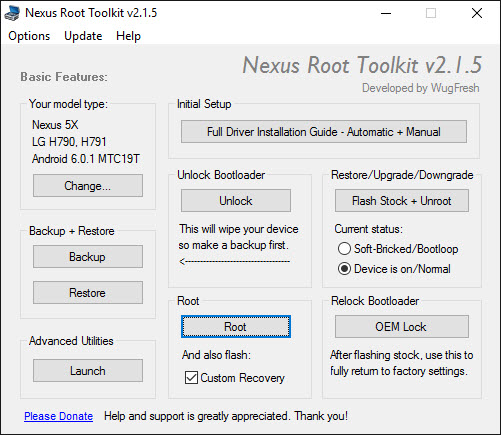

nrt_main_215.jpg

mine=
lock state - locked

after i download and instal the toolkit, what du i push, what do i press in order to do wha you say??
 
It should create a shortcut on your desktop. Once you launch the toolkit it will prompt you for your device, just choose it from the list and then ask you to download/update the necessary files for your device. Once that's all done, you'll get the screen shown above. Select "Soft-Bricked/Bootloop" and then click the button that says "Flash Stock & Unroot".

There will be a couple of prompts telling you what to do, but if you already have the tablet in fastboot mode and connected to your PC then you can just click through them.
 
Open adb fastboot and type

adb reboot fastboot

And see if it reboots into fastboot (to be sure your in fastboot) should load the same screen again

i am sorry
but i dont want to proceed with something assuming i know 100 % what it is... it could potentially lead to an unexplained error...

first of all

what is adb fastboot?

untill now i know hat "fastboot" is that screen on the android device...

but what is adb?

is that a software for the computer? or is that in the android device?
 
It should create a shortcut on your desktop. Once you launch the toolkit it will prompt you for your device, just choose it from the list and then ask you to download/update the necessary files for your device. Once that's all done, you'll get the screen shown above. Select "Soft-Bricked/Bootloop" and then click the button that says "Flash Stock & Unroot".

There will be a couple of prompts telling you what to do, but if you already have the tablet in fastboot mode and connected to your PC then you can just click through them.

i chose the model but not the android version, at the momen the crappy device went damaged it had the lates android update... anyway i choose the option that said "any.... bla bla bla..."

but after all the dialogs a box appeared and says:
FILE DEPENDENCY DOWNLOAD STATUS
TWRP Recovery not present - need download (in red letters)
Chainfire SuperSU Ready.... (in greeen letters)

and a large rectangular button that says "downlaod + update All File Dependencies"


click on that?

how big is the download ?
 
adb is the Android Debug Bridge that lets you type commands to your phone through a terminal session. For adb to work you must have your phone booted into Android (or sometimes recovery will allow a limited set of adb commands) and debugging enabled in settings. You'll also need the proper drivers installed on your PC.

Code:
adb reboot fastboot
simply instructs your phone to reboot into fastboot mode. The same as the power/vol. down button thing.
 
i chose the model but not the android version, at the momen the crappy device went damaged it had the lates android update... anyway i choose the option that said "any.... bla bla bla..."

but after all the dialogs a box appeared and says:
FILE DEPENDENCY DOWNLOAD STATUS
TWRP Recovery not present - need download (in red letters)
Chainfire SuperSU Ready.... (in greeen letters)

and a large rectangular button that says "downlaod + update All File Dependencies"


click on that?

how big is the download ?

TWRP (Team Win Recovery Project) is not that big, but the binary for your version of the OS could be rather large. The last factory image I flashed for my Nexus 6 was almost a full gig. But, yes, click download & update because you'll need them.
 
adb is the Android Debug Bridge that lets you type commands to your phone through a terminal session. For adb to work you must have your phone booted into Android (or sometimes recovery will allow a limited set of adb commands) and debugging enabled in settings. You'll also need the proper drivers installed on your PC.

Code:
adb reboot fastboot
simply instructs your phone to reboot into fastboot mode. The same as the power/vol. down button thing.

ok i copy that

now back with your isntructions....

about the stuff that the software needs to download...
 
TWRP (Team Win Recovery Project) is not that big, but the binary for your version of the OS could be rather large. The last factory image I flashed for my Nexus 6 was almost a full gig. But, yes, click download & update because you'll need them.


but what its that that i needs to download? the image of the OS?

if that, i already downloaded

isnt a filled named:
razor-mob30j-factory-a2878e21
?
 
Yes, it will be an image of the OS, but just let it download it, because it's going to need those files in a name and location that it can find. By the time I figure out how to rename and move the files you already have, (if that's even possible) the toolkit will have finished downloading, so ... as they say in the Nike commercials ... just do it. :)
 
and, another thing

the fact that dont know exactly which android 6 version i have.... what is the software going to download then? isnt going to download all 6 version is it? because if so.. it will take a day (my internet is slow... about 80kbps [downloading speed])
 
uhm..
it says it finished downloading what it needs

i got this log


------------------------------------------
Nexus Root Toolkit v2.1.5

Masterlists:
- LatestToolkitFiles.ini 3120
- AndroidDeviceListFull.ini 3120
- AndroidDeviceListFlash.ini 3120

RAZOR-FLO: Android *.*.* - Any Build

Live log initiated [2016-05-25]:
------------------------------------------
 
Turns out we can use the files you've already downloaded:D

Because you selected "any" version of Android it didn't download the files so that's why it finished quickly.

What you want to do next is click the button shown below

2016-05-25 (2).png


You will then be given a screen asking you to download the system image, but you can opt for using the file you already have by clicking these options

2016-05-25 (1).png


From there wou will be prompted to find that .tgz file that contains all the image files. DO NOT select the files that end in .img, you want the one file that ends in .tgz!

From there click ok and it should (hopefully) flash the OS for you.
 
ahhh...

one thing..

the click on the button and the other things.....
you never mentioned, with the tablet connected or not connected yet? in fastboot?
 
If it's not connected, it will tell you what to do, but yeah, with the tablet connected and in fastboot mode.
 
i am working on that

(tempted to use kitkat, i loved that version, it is the only momnt my tablet meet the word "stability"
 
after a dialog that says:


the image yo entered is for... however bla bla bal..

i click on yes since i understand it is the correct OS image for the correct device i donwloaded from google at the nexus 7 2013 option

after clicking yes or ok, i receive a hashcheck verificastion dialog..
whats that?
 
That is checking the MD5 checksum verifying that the download wasn't corrupt. Once it's done checking it will proceed. Be patient.
 
That's odd. I just tried it with a factory image i have here from Google and it just did this ...

2016-05-25 (3).png


Maybe there's a problem looking up Google Images where you are. The MD5 hash for MOB30J is

9740275dededde5ed6965c05022f3c1d

Just copy and paste that number and you should be okay.
 
Back
Top Bottom