
Install the app
How to install the app on iOS
Follow along with the video below to see how to install our site as a web app on your home screen.
Note: This feature may not be available in some browsers.
-
After 15+ years, we've made a big change: Android Forums is now Early Bird Club. Learn more here.
You are using an out of date browser. It may not display this or other websites correctly.
You should upgrade or use an alternative browser.
You should upgrade or use an alternative browser.
Root Rooted at last
- Thread starter wigs1l
- Start date
-
- Tags
- htc desire



It's quite easy: Launch setcpu, go to the profiles tab, click "Add Profile". Select condition "Screen Off", set max and min both to 245000, and leave scaling to be whatever your normal governor is (since it isn't going to be scaling, as you've just fixed cpu speed, there's no point in changing governor). Save, then enable profiles and you are done. With this profile active your cpu will be locked to its minimum speed when the screen is off.Do you fancy sharing your profile settings please?
I'm not sure what I'm doing here and you seem to have loads of experience with SetCPU. I don't know what you mean by setting max & min to 245?
If you find it lags slightly when waking you might want to set the maximum slightly higher. I find that using the smartass governor that isn't necessary, but when I first used this with a stock kernel (which has a more limited set of governors) I found this helped.
I personally don't bother with any other profiles than this one - otherwise I use setcpu to set my preferred governor and max clock speed and leave it at that.

Eris Ed
Android Expert
Do you fancy sharing your profile settings please?
I'm not sure what I'm doing here and you seem to have loads of experience with SetCPU. I don't know what you mean by setting max & min to 245?
EDIT: posted at the same time as Hadron

It's fairly new to me too, but had some good advice on the forums ;
OK, open SetCPU and you get the main screen. You see sliders that lets you set the maximum and minimum clock frequency (speed) during normal use (without a profile set). Mine is set to Max: 998400 and Min: 245000.
The "Scaling" list shows the available govenors. Don't know much about these but each govenor has different properties. Smartass seems to be a common setting.
Tap the Profiles tab and then Add Profile. Condition: select Screen Off. Max: set to 245. Min: set to 245. Scaling: Smartass. Priority 100 (High). Save. Tick the checkbox top left to enable the profile. Reboot phone. Now when your screen is off the maximum processor speed is 245, which is low and uses less battery. Background tasks normally use the default CPU speed of 998 even with the screen is off.
There's lots of other things you can do but I'm only just exploring them.
Great minds and all that 
Just a thought: on the main screen, tick the "set on boot" box if you haven't done so.
Different governors change how the cpu speed scales up and down in response to load. "Powersave" keeps it very low - good for battery, lousy for responsiveness. "Performance" does the opposite - it runs flat out all the time. The others vary in how quickly they raise or lower the clock; just try them out and see which you like. I find smartass works for me - feels more responsive than ondemand with no cost in battery life - but tastes vary.
Just a thought: on the main screen, tick the "set on boot" box if you haven't done so.
Different governors change how the cpu speed scales up and down in response to load. "Powersave" keeps it very low - good for battery, lousy for responsiveness. "Performance" does the opposite - it runs flat out all the time. The others vary in how quickly they raise or lower the clock; just try them out and see which you like. I find smartass works for me - feels more responsive than ondemand with no cost in battery life - but tastes vary.

wigs1l
Newbie
Cheers Ed and Hadron. Have set it to your advice and will see if battery performance increases. Will need to do a bit more research too!
@ Rowlers, where did you get the alarm clock, battery, signal and wifi icons in the notification bar from please?
I have the super circle zip file on the laptop from the leedroid mini site, just havent put on my sd for flashing yet. Are the rest just the same as a simple flash from Rom Manager/ recovery as well?
Also have the Blackclock transparent status zip, has anyone tried it yet?
@ Rowlers, where did you get the alarm clock, battery, signal and wifi icons in the notification bar from please?
I have the super circle zip file on the laptop from the leedroid mini site, just havent put on my sd for flashing yet. Are the rest just the same as a simple flash from Rom Manager/ recovery as well?
Also have the Blackclock transparent status zip, has anyone tried it yet?
VizualProphet
Well-Known Member
Can anyone tell me what font this is?

I asked on another post but never heard back.
I asked on another post but never heard back.
madhatter1689
Android Enthusiast
VisualProphet - can you not search your sdcard for the file? Might be easier than looking through so many various fonts. Looks good though.
Eris Ed
Android Expert
Also have the Blackclock transparent status zip, has anyone tried it yet?
I have it on SD card but not flashed yet, still a little uncertain how I restore the original bar if I don't like it
VizualProphet
Well-Known Member
VisualProphet - can you not search your sdcard for the file? Might be easier than looking through so many various fonts. Looks good though.
It's not on my SD card, that screenshot was from another post on the 'Show us you Homescreens' thread, I asked in there a while back but never got an answer.
madhatter1689
Android Enthusiast
bet it will be on the site at xda in the original post. Happy hunting!!
VizualProphet
Well-Known Member
Lol I'll begin my search just now, if I find it I'll post back.
VizualProphet
Well-Known Member
Ok that took an age, but should anyone other than myself care, the font is called 'Santana' and can be found on XDA under the 10/7 update.
madhatter1689
Android Enthusiast
Thanks, I will try it out.
wigs1l
Newbie
I have it on SD card but not flashed yet, still a little uncertain how I restore the original bar if I don't like it
If you figure this out, gimme a shout, cos thats one of the reasons I havent flashed it either!
madhatter1689
Android Enthusiast
I used recovery to zip from sd card and each one worked fine. Can't help you I'm afraid
wigs1l
Newbie
Hmmmmmm.......... can't get the fonts to flash. The .zip files from XDA are on SD, and tried from Recovery and via ROM Manager. No error messages and everything works, just the same DroidSans system font as before...
Strange, mine works from both of these methods

rowlers
Android Enthusiast
They came as part of Auravolution Theme (I think - lol), deffo part of a theme I flashed!@ Rowlers, where did you get the alarm clock, battery, signal and wifi icons in the notification bar from please?
Yeh - here it is:
[THEME] AuRavolution Sense Theme v1.0 [AuraxTSense + Revolution port for Desire] 11/9 - xda-developers

droidzone
Android Enthusiast
I have it on SD card but not flashed yet, still a little uncertain how I restore the original bar if I don't like it
Take a copy of the file you're about to flash. Then for each file in this zip, add the file of corresponding name and location, on your Rom's original zip to this new zip. Meaning the new zip contains files from your Rom's zip with names and locations matching the files on your custom theme. Reverting should be as simple as flashing this new zip.
wigs1l
Newbie
Right, heres where I am right now, nearly got it how I want it.
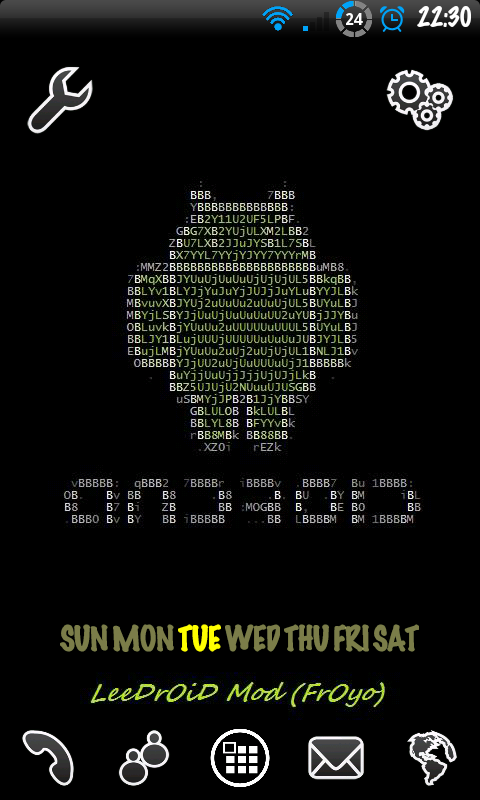
BUT........I want to change the colour of the clock in the top left hand corner to match the other icons I customised in the UOT kitchen.

I also want to change the colour of the white writing in the lockscreen too (O2, time and date)
Anybody able to help?? Have got adb installed and running and can get into my phone, just need to know how to search for the files and change them to want I need.
BUT........I want to change the colour of the clock in the top left hand corner to match the other icons I customised in the UOT kitchen.
I also want to change the colour of the white writing in the lockscreen too (O2, time and date)
Anybody able to help?? Have got adb installed and running and can get into my phone, just need to know how to search for the files and change them to want I need.