• After 15+ years, we've made a big change: Android Forums is now Early Bird Club. Learn more here.

Root Raw camera

I've played around with the tools in Gimp, got better results this time:


The tools you want are under the "Color" tab and the "Filter tab.

Under Color, first hover over "Auto" and select White Balance. It's not perfect, but it gets it close.

After that, I played with the individual saturation and hue levels. Also select the "Levels" option and slide the 3 triangles about to get the right balance of brightness and contrast. Next play with the "Curves" option. you can select multiple points along the straight line that correspond to different color ranges and adjust individually.

Under Filter first hover over "Enhance" and select Antialias.
After that select "Despeckle". A little close-up window appears, click and drag the move icon over an area that has a lot of "noise" showing, and adjust the sliders until you get the desired result.
Lastly select "Unsharp Mask". Same little window appears, same drill as Despeckle.

After that you want to export the image to a .tif under File / "Export as". Click on the little + symbol in the box and you should see a scrollable box for selecting the export extension.

I'm still getting slight over exposure in the photo. See the green floaty to the left of the pool. I tried for a while to fix that, might need to go in and manually fix stuff like that if I can't figure out how to eliminate the overexposure.

All in all, I'm really liking this. Might have found my next obsession hobby. :D
 
I think there's an option in Gimp to do this. Must test!!

I took a few more Raw photos this weekend, I'll test a new photo. :)

EDIT:

I can't seem to get what he's trying to tell me to do here. I'm obviously holding it wrong. :o

Have you had any success with this EM?

I had some success with other, then got pulled away.

Btw - I was too on Gimp 2.8.10. Turns out yours is cutting those back to 8 bit layers too. 16 bit support is coming in Gimp 3. I started to look at the alternatives they suggested - see first note - called away.

When I get back to my desk I'll post up the command line I saved.
 
I had some success with other, then got pulled away.

Btw - I was too on Gimp 2.8.10. Turns out yours is cutting those back to 8 bit layers too. 16 bit support is coming in Gimp 3. I started to look at the alternatives they suggested - see first note - called away.

When I get back to my desk I'll post up the command line I saved.

Ok, take your time. :)

I never got any notifications that the images were being cut back to 8bit in Gimp2. :(

Again , shows how much I know about this stuff. :p
 
Excellent!! :D

Ok, whats different from a .tiff / .ppm?

Must research......

EDIT:

.ppm's aren't compressed!

At least thats what I read. Assumed this is the advantage EM?
 
So, I've been reading quite a bit.

Want to see something interesting from dcraw?

Drop the -T go to -q 3 -m 40 -a

You'll get a ppm file.

OMG!!!

I wish I could like this post twice. That outputs really good images without editing anything.

Here's the CMD line I input:

Code:
dcraw -v -4 -q 3 -m 40 -a IMAG0003.draw

I'll try it with these parameters next to see what I get:

Code:
dcraw -v -4 -q 3 -m 40 -a -r 2.132583 1 1.480864 1 IMAG0003.draw
 
Ok compadre - this is what I made of your picture -

14577443284_83c6748200_o.png


And here are all of the adjustments I had to make to get it there -

14599350723_dcdc41a65e_z.jpg

Nope.

That's it - that's all I did! :)

And by the way - that curve shot is not 100% accurate - but pretty close, I had to go back and capture the screenie.

Take the far upper right point, slide to the middle to give one full stop open to adjust exposure.

Take a point about 2/3 or 3/4 up that line and sort of drag into the curve generally shown until it looks right. :)

I don't know about you - but ...

Wow!

Srsly, wow! :)

PS - that's a full-size png export at 12 MB (4 MP x 24-bit color = 12 MB rgb) - and it will download that way, hope you like it.

PPS - Duh.

14577674024_d72c4084d8.jpg
 
Here's Jishnu's camera, followed by the converted raw (I'm still playing with the curve on that one, it's a bit tricky) -

14348032069_f28eae4b96_o.jpg


14556332526_1aafb57461_o.png


When I have that really zero'd in, I may post the flattened comparisons again but anyway -

14533169824_0f9f207cc9_o.jpg


14579600075_f7f1efa1ae_o.png


It's really hard to compare those two while working on them.

I had to move for a truck coming through and they are displaced in time, just by minutes, but at sunrise that can be a big light change.

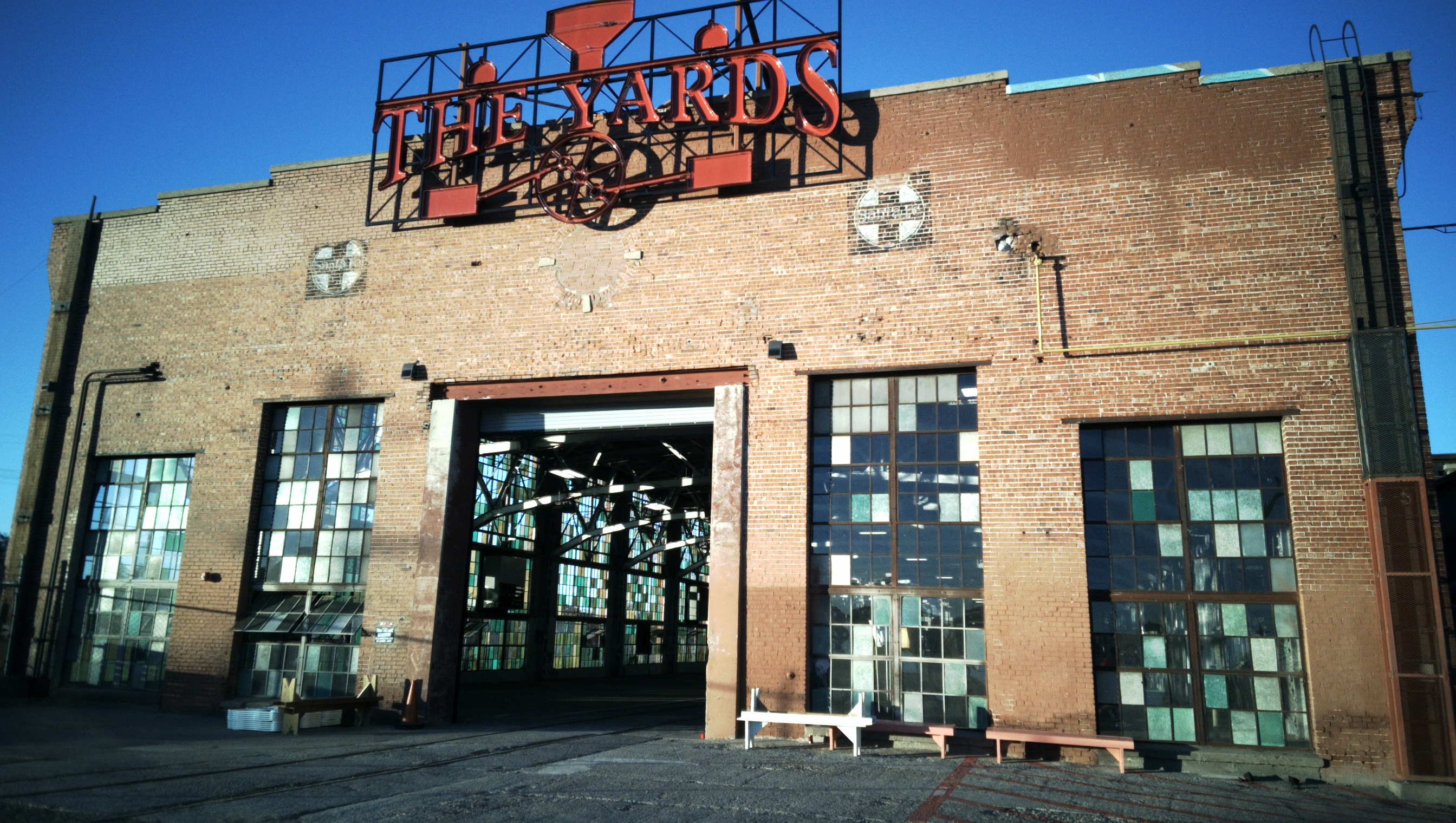
I do note far better color in the various window panes on the right half of the picture.

And yes - you can see people through those windows. :D

PS - Jishnu's camera is very pleasing and I really like the shots I'm getting from it.

They're vibrant and fun.

The raw pictures above are actually far more true to the color of that building - and especially that red sign.

I also noticed an improvement in the sky.
 
Absolutely awesome!! :)

This thing takes good photos, despite what some think. ;)

Thank you for placing your expertise on that photo, really turned out good. :)

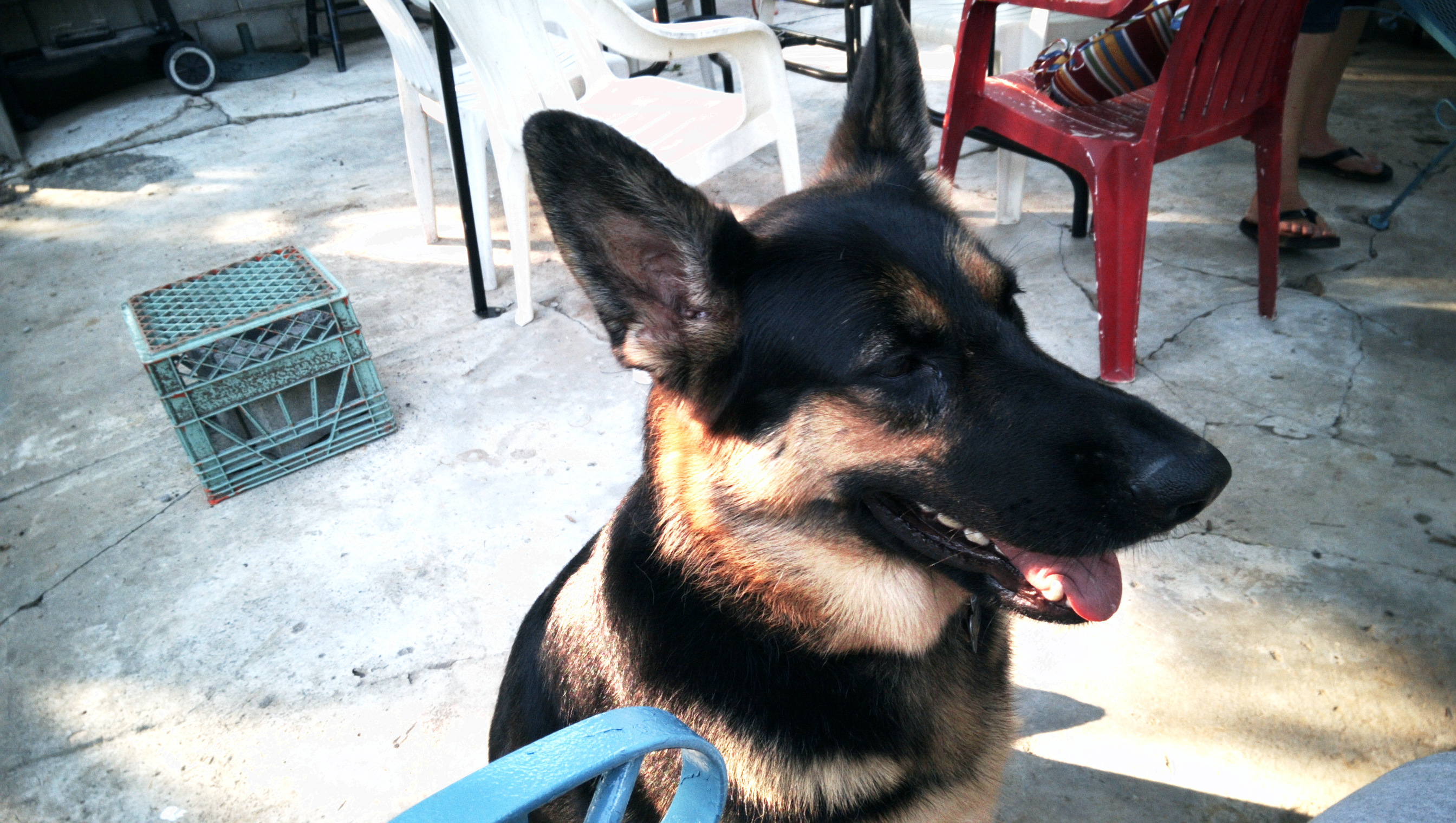
I tried to get both a Jishnu camera shot for reference, and a RAW of her, but you know how dogs are. I got this one with Jishnu's camera for reference, it's not exactly the same shot nor the same time. A few minutes elapsed before I could get her to sit again for more than 3 seconds.:p


When they are compared, there is very little difference in color. Especially the darker orange under her ears. This shot has far less sunlight on her fur, so the highlights aren't as severe. Overall your corrected photo without anything for reference is absolutely amazing!!
 
Thanks - I think I'm going to try working on getting the reference values next.

Btw - not sure which is closer to reality but the red chair suggests that I'm still just a bit off. Yes?
 
Thanks - I think I'm going to try working on getting the reference values next.

Btw - not sure which is closer to reality but the red chair suggests that I'm still just a bit off. Yes?

Actually, you're closer than you think. I seem to find that Jishnu's camera over saturates reds a bit. That red char was painted a few years ago and it's oxidizing and fading pretty bad. Your rendition is closer than Jishnu's. :)

I did notice in your photos above the difference in the reds in the sign. Is the red saturation just on mine or is yours doing it too?
 
No no - Jishnu's really gives a pleasant, heavy red saturation.

That sign doesn't look like that at all, nor is that a red brick building. It's some red-ish...

Based on defcomg's observation that mine were coming out a bit cool, I adjusted the red ever so slightly.

Curve, slight red adjustment - that's it - what do you think?

14396597867_c502edc4dc_o.png


14396358059_15736a9ee3_o.png


I'm going back to that building in the morning at sunrise again tomorrow.

My laptop is at least gamma corrected.

I'll try to give an impression if any of these are really as close to reality as I'm thinking.

And Granite, I've posted your pup over there so defcomg can eval what we're doing over here. In the interest of better pictures and I've given you and your dog full credit, I didn't think you'd mind. Let me know if I need to go fix that though.

By the way, with this mod - I'm seeing some red in that milk crate.

Is that real? Tell me that we got some of the spill from the painting of the chair... :D

How real is your pup's tongue color do you think from that recent change?
 
It's great, and her tongue is spot on. It's amazing how fast you pick this stuff up. :)

I haven't adjusted my saturation or color levels at all for standard shots with Jishnu's camera. I like the way they turn out, just noticed the red shift. Making sure we don't have a difference in factory calibration, if thats even possible. :o

I never mind you using my photos, credit or not. It'll help the process, and the community that much more.

Almost forgot, the milk crate does have some red on it. My misses is like a chameleon when it comes to color schemes, so that thing and just about everything else we own has several layers of various paint on it. :p

EDIT:

Again I need to refresh more often. You ninja'd me there Unforgiven!! :p
 
Lookie what I got! :)

Here's the draw - go ahead and process it.

https://drive.google.com/file/d/0B2MPU5MqABTXa2xaVnRWRmZFblE/edit?usp=sharing

Now - here's that same thing, adjusted just for a little more exposure and contrast using that tool (not curves), and then added in just a bit of saturation -

14400826130_a879d9a269_o.png


And with this morning's overcast sky, that is just about EXACTLY how that appeared according to comparing the final results on my gamma-adjusted Mac laptop and the real deal.

I have no idea how my others got two-toned.

The one big trick - add +1 EV to the raw camera before shooting. (I also tried playing with saturation but exactly as I expected, that is a post-processing thing and had no effect.)

So - leave your raw M8 camera set to +1 EV, auto, auto white.

And - defcomg turned me on to Elle at Nine Degrees Below photography - and wow! what a great help and really giving! - she's given me a lot of good pointers about zeroing in the right numbers for adjusting to white that I hadn't read before.

As soon as time allows, I'm going to adjust even further.

BTW, processed using:

dcraw -v -4 -q 3 -m 40 -a -r 2.132583 1 1.480864 1 IMAG0007.draw

I don't recall my exact Gimp brightness/contrast additions (I think in the neighborhood of 39/26) nor my saturation adjustment (ummm - up some ok) - and I wasn't sweating that because -

1. Those will likely change once I try for better input numbers.

2. Those are things that we often like to play with anyway because sometimes final effect is more fun that dead-on accuracy.

PS - the above image was not made with the same attempt to steady the camera as last weekend. I was pressed for time, I just wanted to get some quick snaps and check color.
 
Back
Top Bottom