
Install the app
How to install the app on iOS
Follow along with the video below to see how to install our site as a web app on your home screen.
Note: This feature may not be available in some browsers.
-
After 15+ years, we've made a big change: Android Forums is now Early Bird Club. Learn more here.
You are using an out of date browser. It may not display this or other websites correctly.
You should upgrade or use an alternative browser.
You should upgrade or use an alternative browser.
Root The PRS Complete Rooting Guide
- Thread starter prerunnerseth
- Start date
-
- Tags
- htc droid incredible

necosino
Android Expert
I am with you on this one. My computer doesn't even recognize my phone when in recovery.
Mine shows up under disk drives, like it's mounting the internal storage, which makes sense. Just wanted to see if others had this happen or had something different.

0tter
Newbie
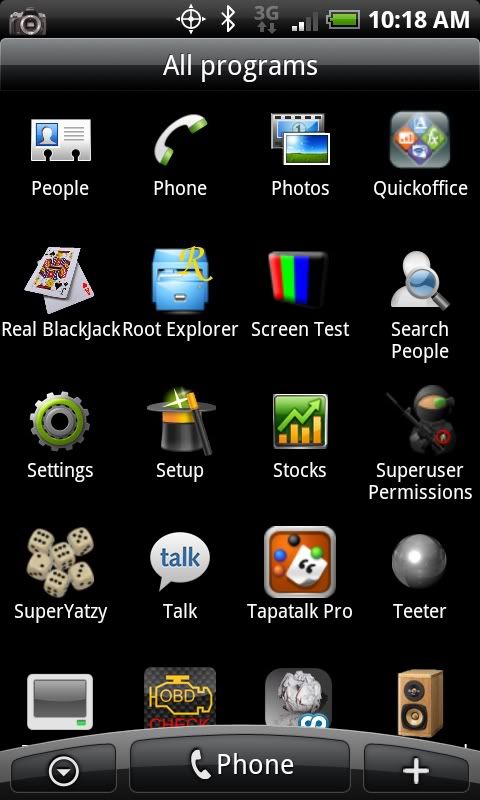
how do i find and then install root explorer? will these apps help delete unwanted apps? I already removed city ID, want to delete htc sense, teeter, peep, etc. Thanks for any assistance
It's in the marketplace.
Mine shows up under disk drives, like it's mounting the internal storage, which makes sense. Just wanted to see if others had this happen or had something different.
I can't even get mine to do that. It just doesn't see it. It works fine in normal mode.
When you get to this part, this is what took me about 30 tries
Code:
adb push payload-update.zip /sdcard/update.zip
Now press the power button on Apply: update.zip within 1/2 second press enter on the command window to execute the above command.
Timing is key, you have to hit it at the correct time, your window is tiny! like throwing a pea into a straw, across the room.
After a few tries i got it, it just needs to be timed right.
The deal here is that you're performing a switcheroo, you're substituting the ota update, which has a valid signature, for the payload, which doesn't, at the last second. If you're getting a signature failed message you're injecting the payload too soon and it's failing the signature check. Let it verify the signature and as soon it does, hit enter to replace the ota zip with the payload zip.
drtrmiller
Newbie
Mine shows up under disk drives, like it's mounting the internal storage, which makes sense. Just wanted to see if others had this happen or had something different.
Same issue, here. Can anyone offer an explanation for this?
necosino
Android Expert
Can anyone quickly tell me why when I in the cmd prompt and I try to open adb shell I get what looks like a "$"? What is it and what am I doing wrong?
$ means you don't have root permission. If it changes to #, you have root access.

macdaddybuff
Android Enthusiast
Where can I download loop.bat. Tried creating my own maybe thats the problem..
macdaddybuff
Android Enthusiast
You shouldn't need the loop.bat file anymore if you follow the instructions in the first post of this thread.
Followed all the instructions to a t. Even used a stop watch.. Tried 2 diff cards. Plus many many other things. ADB shell does see my phone when it is turned on. Devices show up when phone is on. But nothing I have tried has got me into recovery.
prerunnerseth
Android Enthusiast
Super user app install procedure added!!!!!!!!!!!!!!!!!!!!!!!!!
jasonb1985
Android Expert
what does installing the superuser apk get us? whats it actually do?
DiegoMejia
Well-Known Member
i got in but, when i typed
adb push busybox /sdcard/busybox
i got this "cannot stat 'busybox': No such file or directory"
i put all those files in the tools folder already.
because its looking for busybox in the tools folder, if you have busybox on the sdcard you can skip that step, but you cant put ota.zip on the sdcard, you need to follow the steps listed in the first post to get that to work correctly, if you need video help check out my videos
http://androidforums.com/all-things-root-incredible/98236-incredible-root-video.html

zeke88
Well-Known Member
you need to select apply update.zip from the phone first, after that it'll allow you to push the files
i did, even twice.
DiegoMejia
Well-Known Member
i did, even twice.
look at the post above yours
zeke88
Well-Known Member
because its looking for busyboy in the tools folder, if you have busybox on the sdcard you can skip that step, but you cant put ota.zip on the sdcard, you need to follow the steps listed in the first post to get that to work correctly, if you need video help check out my videos
http://androidforums.com/all-things-root-incredible/98236-incredible-root-video.html
i put all those file in the C:\android\tools folder with adb right?
i used a clean sd card. do i need to create any folders in the sd card before pushing?
prerunnerseth
Android Enthusiast
DiegoMejia
Well-Known Member
i put all those file in the C:\android\tools folder with adb right?
i used a clear sd card. do i need to create any folders in the sd card before pushing?
nope, you should be good to go
I DID NOT MAKE THE ROOT PROCEDURE ALL PROPS GO TO THE TEAM AT
UNREVOKED. I just tacked on the perm procedure and regurgitated it in my own words. \
************DISCLAIMER**********
I nor anyone else is responsible if you break your phone. try this at your own risk!!
***********END DISCLAIMER**************
Original procedure here:
public:adb_in_recovery [RootWiki]
donate here:
https://secure.eff.org/site/Donatio...OXY_ID=1570&PROXY_TYPE=22&1840.donation=form1
I am just compiling the Current procedure here.
Install the android SDK
Android SDK | Android Developers
Install HTC Sync From your internal storage.
Download these three files and place them into your android sdk/tools folder (wherever you installed it)
http://www.shadowmite.com/temp/payload-update.zip
http://www.unrevoked.com/incredible/ota.zip
http://www.unrevoked.com/incredible/busybox
Download this file and extract su and Superuser.apk from it
http://bit.ly/brI0EV
Move su and Superuser.apk to your Android SDK/Tools folder
Click on start
then on box at the bottom of your start menu
type cmd
a command window will pop up
navigate to the android SDk Tools directory
type edit loop.bat
in edit enter the following
press alt-f then xCode:@echo off :TOP adb shell GOTO TOP
hit enter for yes
***********ADDED BOTH METHODS for shell in recovery*****************
credit to you_eeeeeediot @ XDA for the new procedure
type loop in the command window and press enter
the screen should fill up with "Error - Device not found"
Unplug the USB
Press and hold the optical Trackball and press power
Once in the menu press power again
Wait 20 seconds for it to do its bit
Plug USB in and wait another 10 seconds for your computer to detect the phone
press menu down to highlight "recovery"
Press power
wait 20 seconds
the screen should change from "error: device not found" to "exec '/system/bin/sh' failed: No such file or directory (2) -"
If you do not get this message within 10-30 seconds pull the battery and do it over again.
Once you get the above message then click on the cmd window and press ctrl-C to stop the batch file.
If It works skip the method 2 part.
If this doesnt work ... try method 2
*****************Method 2*************************
Shut the phone off
plug the phone into USB
in the command window and type loop
the screen should fill up with "Error - Device not found"
Press the and hold the volume down button then press and hold power
once in the menu press volume down to highlight "recovery"
Press the power button
the screen should change from "error: device not found" to "error: device not found" to "exec '/system/bin/sh' failed: No such file or directory (2) -"
If you do not get this message within 10-30 seconds pull the battery and do it over again.
*****************end method 2**********************
now you should still be in the triangle with the ! screen. press vol up and power to go back to the menu. DO NOT REBOOT.
Press vol down to highlight "apply: update.zip" and press the power button
It will fail at this.
Go back to the CMD window and type the following commands.
Now type the next command but DO NOT PRESS ENTER YETCode:adb push busybox /sdcard/busybox adb push ota.zip /sdcard/update.zip adb push su /sdcard/su adb push Superuser.apk /sdcard/Superuser.apk
Now press the power button on Apply: update.zip within 1/2 second press enter on the command window to execute the above command.Code:adb push payload-update.zip /sdcard/update.zip
If successful you should see
prerunnerseth
Android Enthusiast
Barnacle seems to work now with the new SU... but never shows up in my laptops wireless list.