

brotherswing
Android Expert
Several members have requested a tutorial for how to use the UoT Kitchen, so here you go.  This is geared toward the BACKside ROM. Due to differences in ROMs your cooking time may need to be adjusted.
Be prepared, it will take at least a half an hour of your time.
Be careful, if you accidentally click the wrong link, your work will be lost.
Pre Themeing Checklist:
You will need the ROM you're trying to theme, 7zip (or a comparable compression utility), and a notepad (any will do). Also, it helps to have a clear idea of what you want to create. There are a lot of options in the kitchen, and if you don't know what you're after it's easy to get bogged down.
Let's begin, shall we?
Before you even load the Kitchen, create a temporary folder for your work. Place a copy of your ROM here. Use 7zip (or whatever) to unzip it here. You'll see why in a moment. Now, fire up the Kitchen.
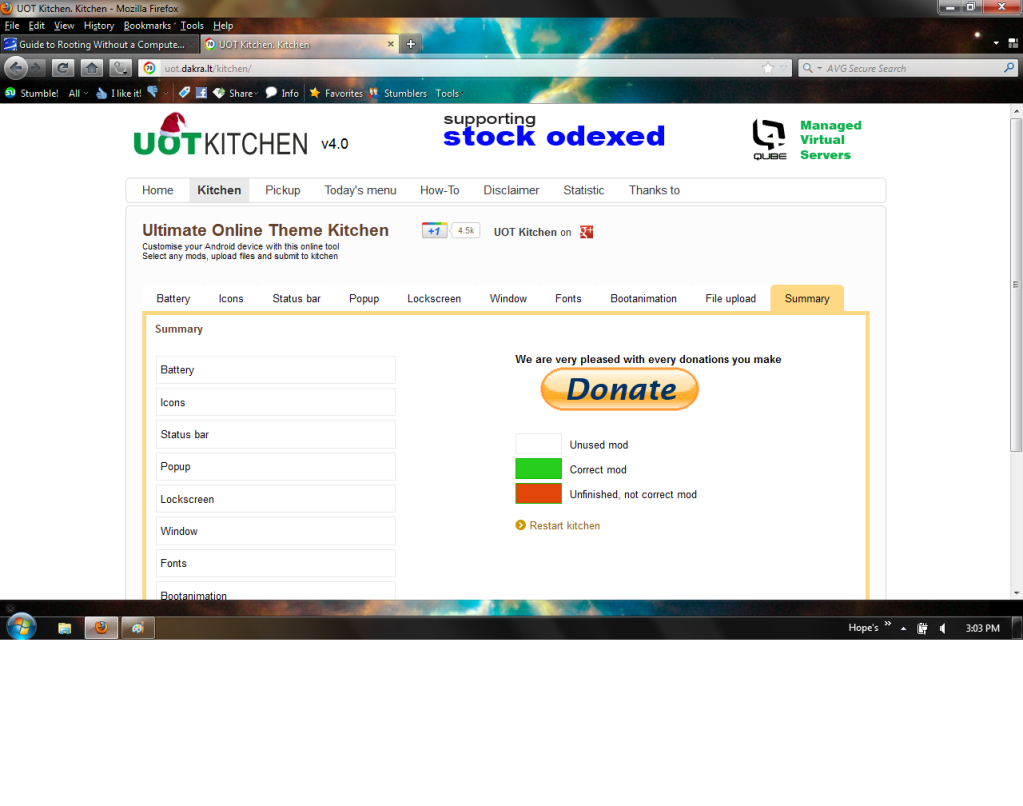
When you start the Kitchen you will see this:
There really isn't a lot to this, you can use any combination of icons and settings without issue, except we use a CM7 ROM, not MIUI. Do not use any settings for MIUI.
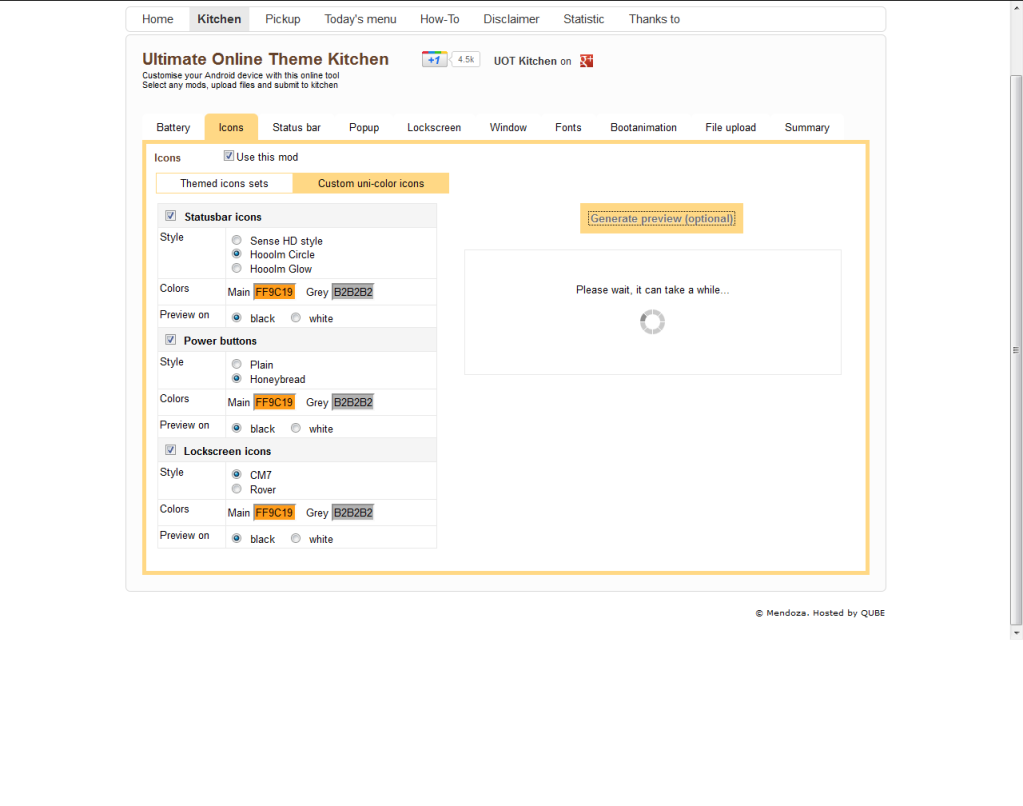
Notice the preview hasn't rendered? That happens quite a bit, so you need to be patient. Also note that the color selections are in hex format. This is where the notepad comes in. I usually use three colors in my themes, a main as well as one a bit lighter and one a bit darker. Note the hex codes for your colors with the notepad, for easy copy and paste operations. This way you will have consistent colors across your theme.
Like so:
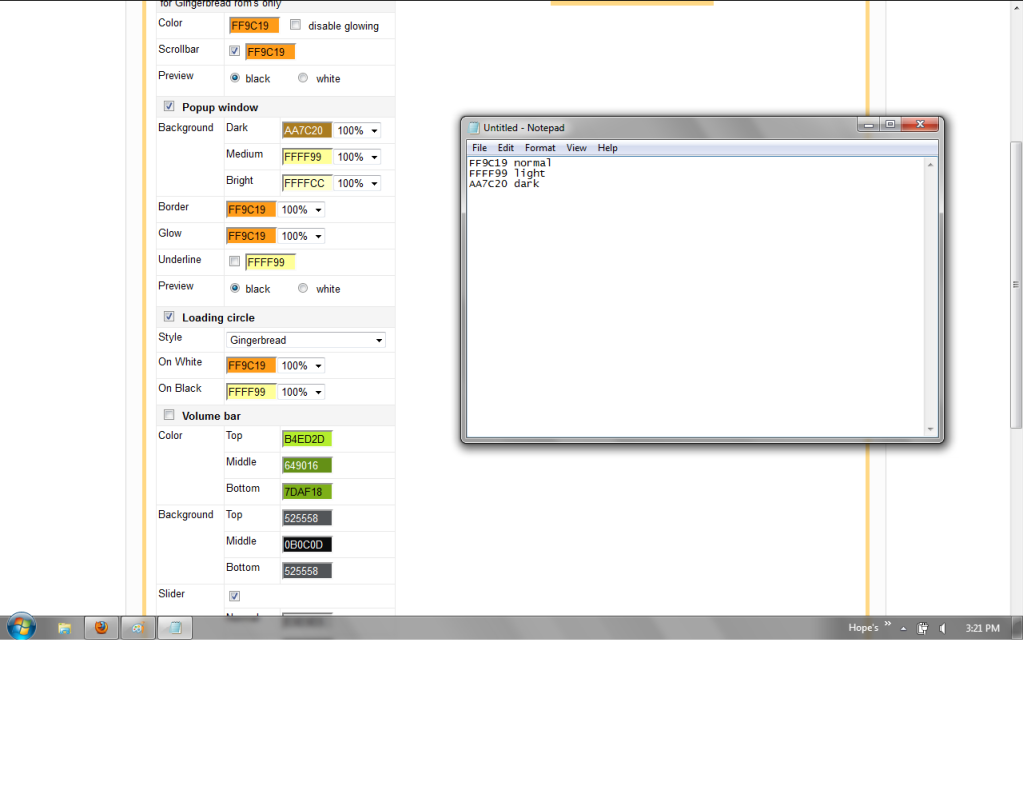
The reason I use three shades per theme is for the pop ups, volume bars, and sliders. All of these options will let you use three or more colors. I like to assign the darkest shade for the top and bottom colors, and the lightest for the center in my volume bars. This creates a touch of a 3D illusion.
Now feel free to go wild with the modules of the kitchen, but two warnings.
Do not use an animated background for the notification area. This will crash the status bar, and you'll have no notifications.
Be careful when selecting the place for your bootanimation.
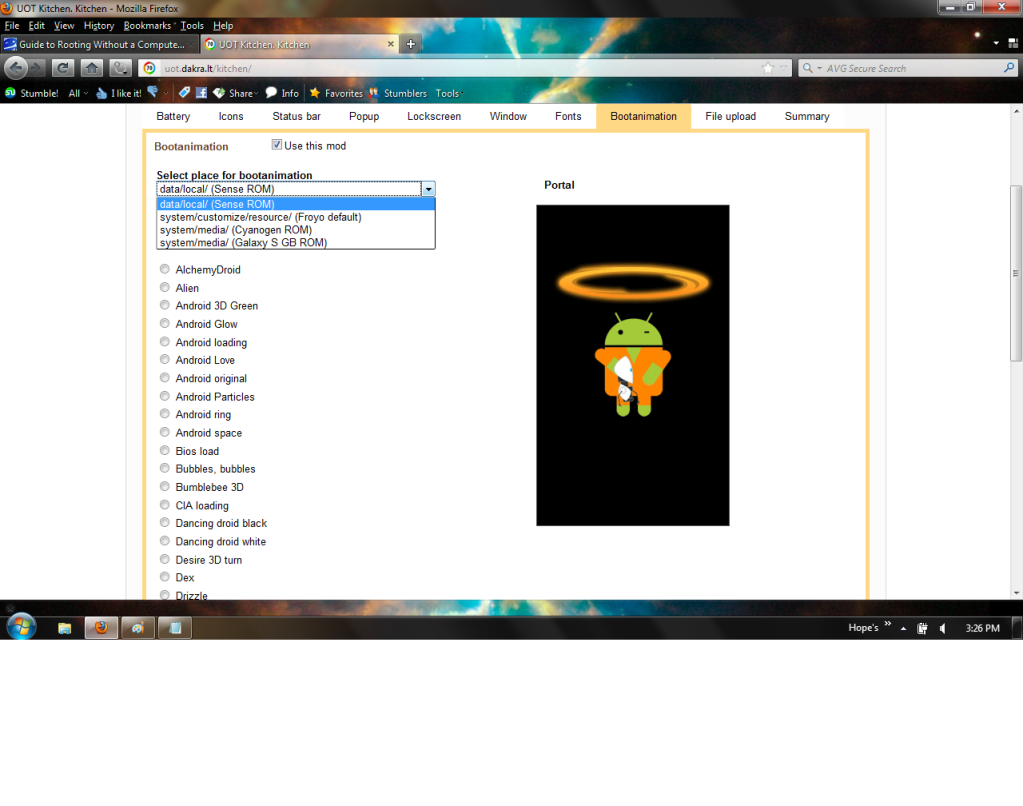
We have a Cyanogen based ROM. Choosing the wrong location will result in a bootanimation that can't be changed later (without jumping through a buch of hoops! Solution at the bottom of the post.)
One other thing, there are places in the Kitchen that need to know if your phone is HDPI, MDPI, or LDPI. The OV is a MDPI phone.
After you are satisfied with your work, go to the file upload tab.
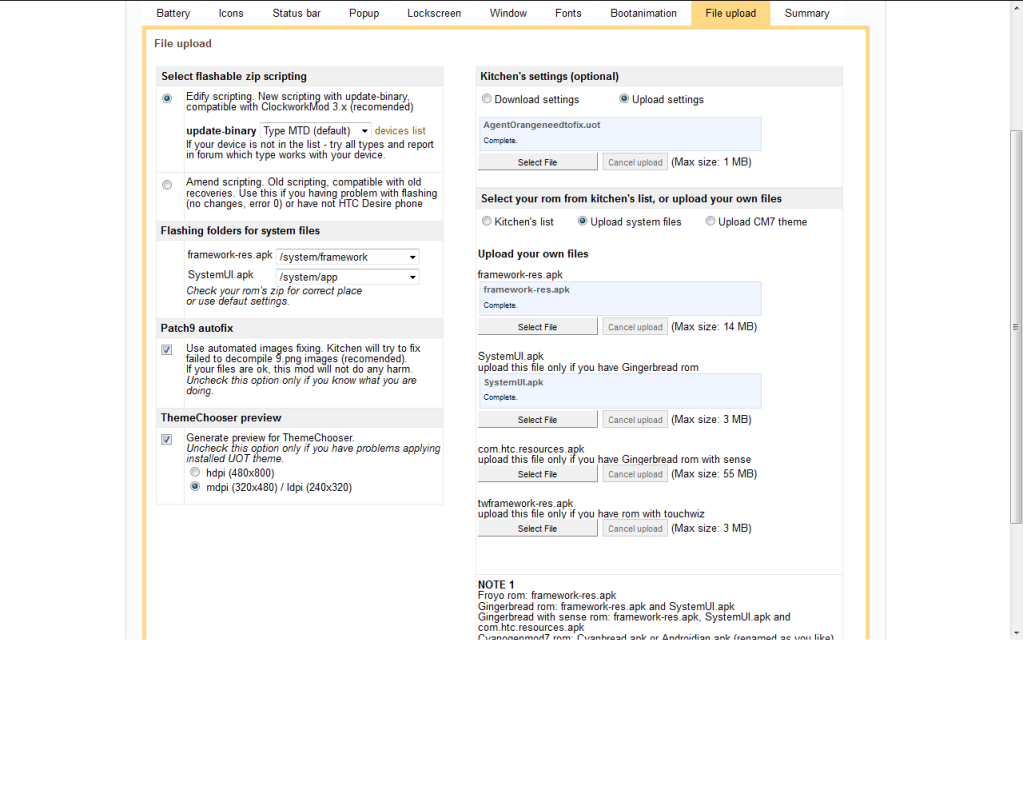
Don't be intimidated by settings you don't understand, just set them like mine (if they aren't already, these are the defaults). You will need to upload two files, that's why the unzipped ROM back at the beginning. For the framework-res.apk, you will find it in /system/framework, for SystemUi.apk, you will find it in /system/apps.
You also have the option of downloading your settings to a file. This makes for easy updating in the future. If you forget to save your settings, don't panic. Look inside your uot zip file with 7zip, and you'll find it in the folder called (what else) /settings.
Once those are uploaded you can go to the summary tab. Everything should be green or white (if you didn't use it) like so:
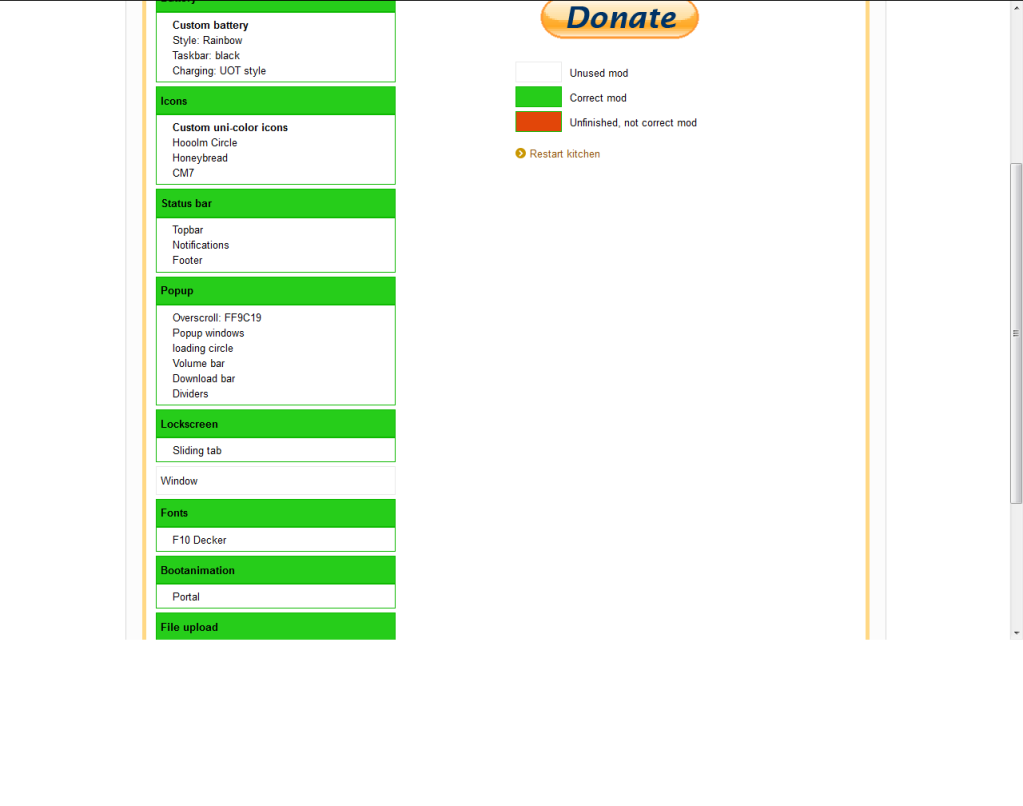
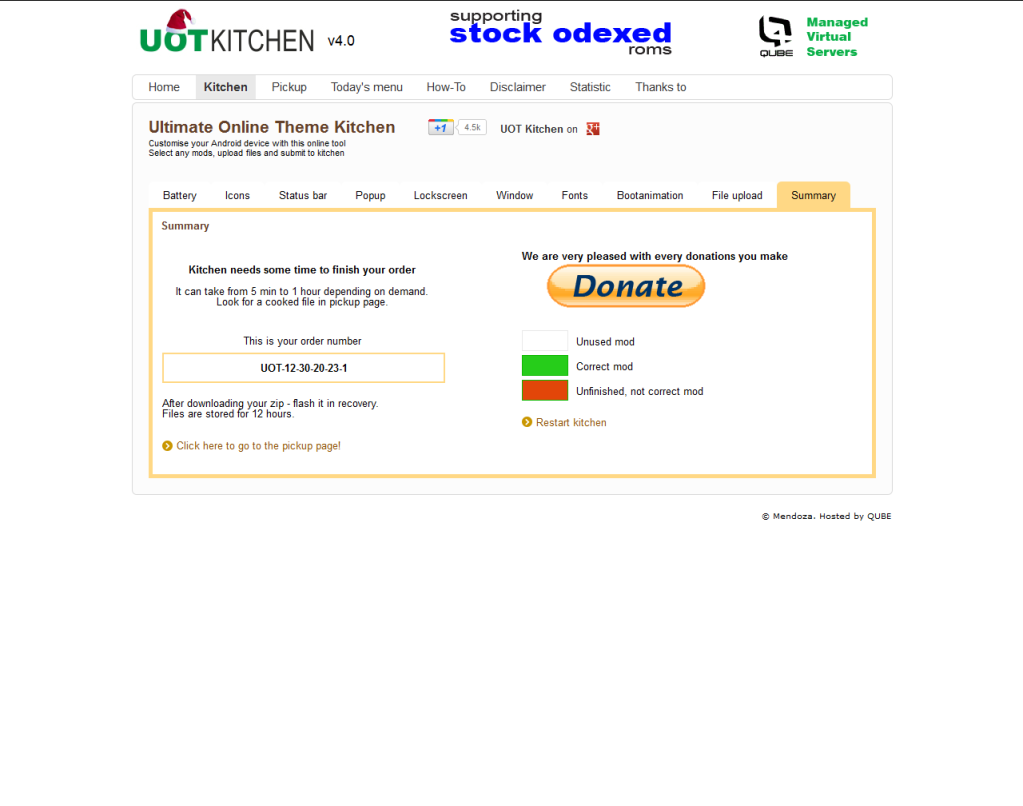
Now you are ready to click submit. You should see something like this:
It's easy to go overboard. Think of the impact of not just the preview you're looking at, but of all of your customizations at once. Sometimes a little goes a long way.
If you are working on several themes at the same time, make note of the UoT number. Now go to the pick up page, and wait for your number to come up. Now you can download it for testing. It isn't unusual for me to re-cook a theme three or four times, to get it just right. If you are satisfied, it's time to give it a descriptive name, upload to something like Mediafire, put some screen shots on Photobucket, and post it here!
If you are updating a theme, just upload your uot file in the settings tab. Note - For some odd reason, the Kitchen doesn't seem to save icon settings. You need to reset that every time. At least I do, might just be me.
Forget to save your settings? Like a theme by someone else, and want to do a remix? Please remember to give proper credit to the original theme author.
Open the theme zip file with 7zip (or similar) and look for the folder "settings", your uot file will be in the root of that folder.
Want to use a boot animation other than whats in the kitchen? Make your own with this nifty tool, and want to use it?
Again, with 7zip (or similar) open your theme zip file. Navigate to /system/media where you'll find a file named bootanimation.zip. Guess what that is? Overwrite this with your custom file renamed to bootanimation.zip. Now you need to resign your zip, or it won't install.
Have a boot animation that just won't go away? Tried flashing new themes, and boot animation changers with no effect?
Use ES File Explorer (or similar) and navigate to /data/local. Delete the bootanimation.zip. Reboot and enjoy!
Feel free to ask questions, or make observations. I will continue to edit and tweak this guide, and I welcome your feed back.
This is geared toward the BACKside ROM. Due to differences in ROMs your cooking time may need to be adjusted. Be prepared, it will take at least a half an hour of your time.
Be careful, if you accidentally click the wrong link, your work will be lost.
Pre Themeing Checklist:
You will need the ROM you're trying to theme, 7zip (or a comparable compression utility), and a notepad (any will do). Also, it helps to have a clear idea of what you want to create. There are a lot of options in the kitchen, and if you don't know what you're after it's easy to get bogged down.
Let's begin, shall we?
Before you even load the Kitchen, create a temporary folder for your work. Place a copy of your ROM here. Use 7zip (or whatever) to unzip it here. You'll see why in a moment. Now, fire up the Kitchen.
When you start the Kitchen you will see this:
Breakdown of the Kitchen
The Kitchen is broken up into tabs, like a browser. Notice how it starts at the summary tab, and everything is white? We'll be coming back to this later. For now, let's start with the tab labeled "Battery." In every mod of the Kitchen there is a checkbox, to select whether to use it or not. Select the check box if you want to theme the battery indicator.
There really isn't a lot to this, you can use any combination of icons and settings without issue, except we use a CM7 ROM, not MIUI. Do not use any settings for MIUI.
Notice the preview hasn't rendered? That happens quite a bit, so you need to be patient. Also note that the color selections are in hex format. This is where the notepad comes in. I usually use three colors in my themes, a main as well as one a bit lighter and one a bit darker. Note the hex codes for your colors with the notepad, for easy copy and paste operations. This way you will have consistent colors across your theme.
Like so:
The reason I use three shades per theme is for the pop ups, volume bars, and sliders. All of these options will let you use three or more colors. I like to assign the darkest shade for the top and bottom colors, and the lightest for the center in my volume bars. This creates a touch of a 3D illusion.
Now feel free to go wild with the modules of the kitchen, but two warnings.
Do not use an animated background for the notification area. This will crash the status bar, and you'll have no notifications.
Be careful when selecting the place for your bootanimation.
We have a Cyanogen based ROM. Choosing the wrong location will result in a bootanimation that can't be changed later (without jumping through a buch of hoops! Solution at the bottom of the post.)
One other thing, there are places in the Kitchen that need to know if your phone is HDPI, MDPI, or LDPI. The OV is a MDPI phone.
After you are satisfied with your work, go to the file upload tab.
Don't be intimidated by settings you don't understand, just set them like mine (if they aren't already, these are the defaults). You will need to upload two files, that's why the unzipped ROM back at the beginning. For the framework-res.apk, you will find it in /system/framework, for SystemUi.apk, you will find it in /system/apps.
You also have the option of downloading your settings to a file. This makes for easy updating in the future. If you forget to save your settings, don't panic. Look inside your uot zip file with 7zip, and you'll find it in the folder called (what else) /settings.
Once those are uploaded you can go to the summary tab. Everything should be green or white (if you didn't use it) like so:
Now you are ready to click submit.
You should see something like this:
General Tips
It's easy to go overboard. Think of the impact of not just the preview you're looking at, but of all of your customizations at once. Sometimes a little goes a long way.
If you are working on several themes at the same time, make note of the UoT number. Now go to the pick up page, and wait for your number to come up. Now you can download it for testing. It isn't unusual for me to re-cook a theme three or four times, to get it just right. If you are satisfied, it's time to give it a descriptive name, upload to something like Mediafire, put some screen shots on Photobucket, and post it here!
If you are updating a theme, just upload your uot file in the settings tab. Note - For some odd reason, the Kitchen doesn't seem to save icon settings. You need to reset that every time. At least I do, might just be me.
Forget to save your settings? Like a theme by someone else, and want to do a remix? Please remember to give proper credit to the original theme author.
Open the theme zip file with 7zip (or similar) and look for the folder "settings", your uot file will be in the root of that folder.
Want to use a boot animation other than whats in the kitchen? Make your own with this nifty tool, and want to use it?
Again, with 7zip (or similar) open your theme zip file. Navigate to /system/media where you'll find a file named bootanimation.zip. Guess what that is?
Overwrite this with your custom file renamed to bootanimation.zip. Now you need to resign your zip, or it won't install.Have a boot animation that just won't go away? Tried flashing new themes, and boot animation changers with no effect?
Use ES File Explorer (or similar) and navigate to /data/local. Delete the bootanimation.zip. Reboot and enjoy!
Feel free to ask questions, or make observations. I will continue to edit and tweak this guide, and I welcome your feed back.


 tweaking. The notification dropdown looks great. Wish I could take a screenshot but it disappears when I hold down the power button to get a screen.